Canva Review (2026): Is It Truly Worth It for Freelancers?
Quick Verdict
This Canva review is written from real, hands-on experience. We have used Canva across client projects, personal brands, content pipelines, and team workflows. We have stress-tested its AI tools, beaten on its video editor, and pushed its free plan to the absolute wall. What you are reading is not a recycled features list - it is the honest truth about what Canva does brilliantly, where it still frustrates, and whether it deserves a place in your freelance too10,000+ Best free AI Tools(2026)- Local AI Frontends(free and Paid)lkit in 2026. Spoiler: it almost certainly does.
Our Overall Rating: 4.5 out of 5
| Category | Score |
|---|---|
| Ease of Use | 5/5 |
| AI Features | 4.5/5 |
| Design Flexibility | 4/5 |
| Value for Money | 5/5 |
| Collaboration | 4.5/5 |
| Export Quality | 4/5 |
| Customer Support | 3/5 |
| Overall | 4.5/5 |
How to Get Started with Canva
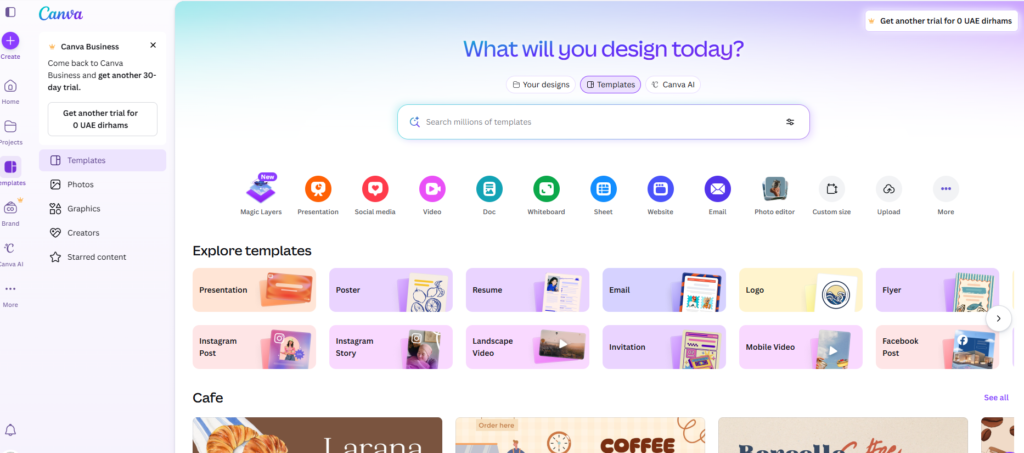
Getting started with Canva takes about 90 seconds. You go to canva.com, sign up with your Google account or email, and you are immediately dropped into a dashboard showing every possible design format - from Instagram posts to pitch decks to whiteboards to book covers. There is no setup wizard, no complicated onboarding. You click on the format you need, choose a template (or start from scratch), and you are designing.
For freelancers, the smart starting move is this: after signing up, immediately go to your Brand Kit and upload your brand colors, fonts, and logo. Even on the free plan, you get one Brand Kit with three colors - more than enough to get started. From that point on, every template you open can be restyled to match your brand in seconds.
If you are on Pro or Business, set up all your Brand Kits immediately - one for yourself and one for each major client. This single workflow change will save you hours every month.
Canva: An Overview
Canva launched in 2013 as a web-based graphic design tool aimed at people who could not use Photoshop. In 2026, that origin story feels like ancient history. Today, Canva is a full Visual Suite covering design, video, presentations, websites, documents, spreadsheets, whiteboards, and AI-powered content creation - all under one roof. It has over 200 million users across 190 countries.
In 2024, Canva made its most significant strategic move: acquiring Affinity, the professional design software suite (Photo, Designer, Publisher) beloved by professionals who refused to pay Adobe subscription fees. That acquisition is now deeply integrated into Canva in 2026, giving paid users access to on-device, professional-grade design tools that would have cost hundreds of dollars per year just two years ago.
For freelancers, what this means practically is that Canva is no longer just for quick social graphics. It is now a serious, end-to-end creative production environment.
Our Video Review of Canva
Add your video embed here - we recommend a walkthrough of the dashboard, the AI tools, and the Brand Kit setup for maximum relevance to freelancers.
How Does Canva Work?
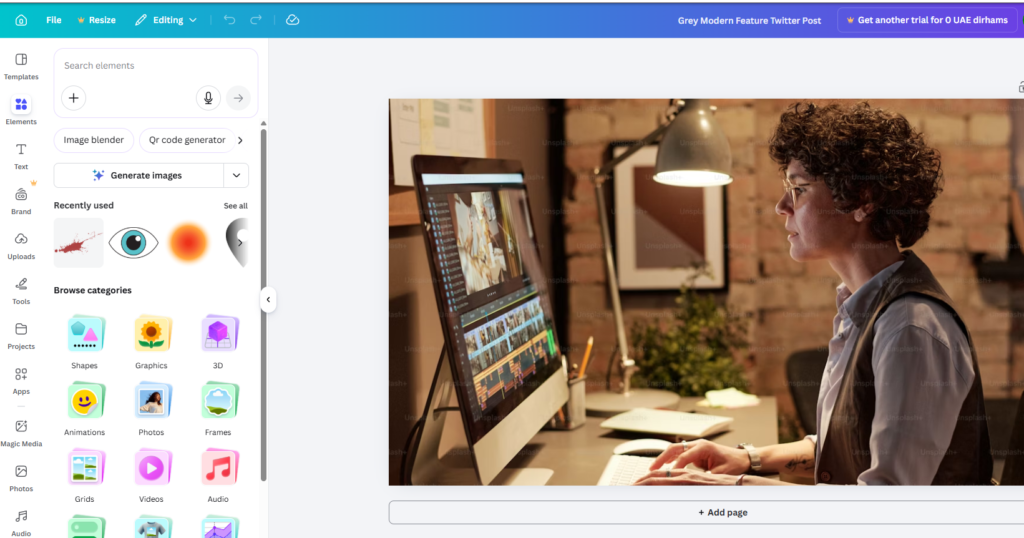
Canva operates on a drag-and-drop canvas model. Everything - text, images, video clips, shapes, icons, charts, AI-generated content - exists as a moveable, resizable element on your canvas. You start either from a blank canvas with custom dimensions or from one of Canva’s 3.6 million+ templates.
The interface runs entirely in a browser (or the desktop/mobile app), with no software installation required. Changes are saved in real time to the cloud. Collaboration happens live - multiple people can be on the same design simultaneously, seeing each other’s cursors and edits as they happen.
For freelancers, the key workflow advantage is this: because everything lives in the cloud and everything shares the same interface, you can move between a client deck, a social post, a website, and a document without ever leaving Canva or relearning a different tool. That consistency compounds into massive time savings over a working week.
Ease of Use
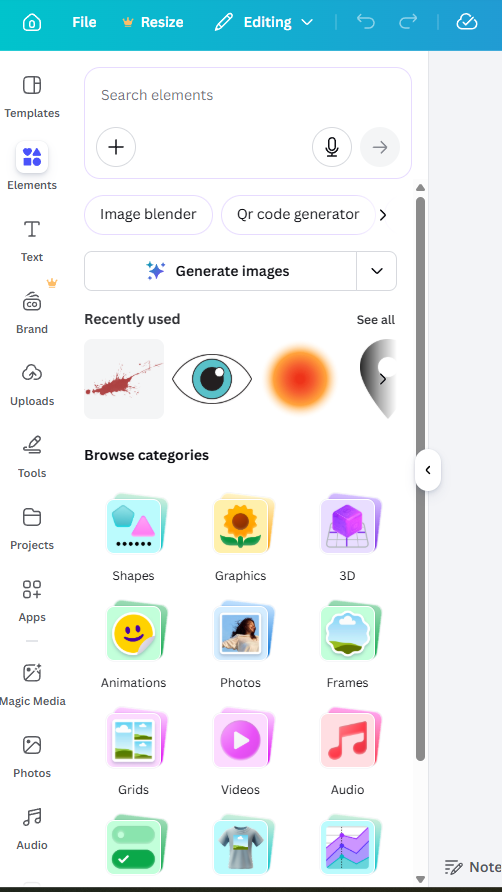
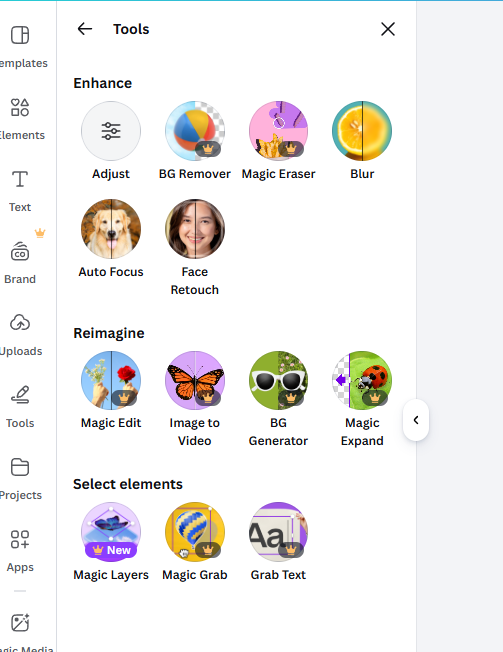
This is where Canva absolutely dominates. The learning curve is almost nonexistent. The toolbar is logically placed. The template library is searchable and well-organised. Drag-and-drop behaves exactly as you’d expect. Color pickers are intuitive. Font pairing works beautifully. Even the more advanced features - like Magic Resize, background removal, and the AI image generator - are accessible through a single panel without digging through menus.
We tested Canva with a freelancer who had zero design background and asked them to create a branded client proposal from scratch. They had a polished, professional-looking document within 25 minutes - on their first ever use of the tool. That is a remarkable achievement in UX design.
Where ease of use breaks down slightly is in very complex multi-page documents or when you need something very precise - like exact pixel positioning, custom kerning, or complex layer management. But for 95% of freelance use cases, this will never be a problem.
Using AI to Create or Manipulate Content in Canva
This is where Canva’s 2026 offering gets genuinely exciting, and where the gap between the free and paid plans has never been more significant.
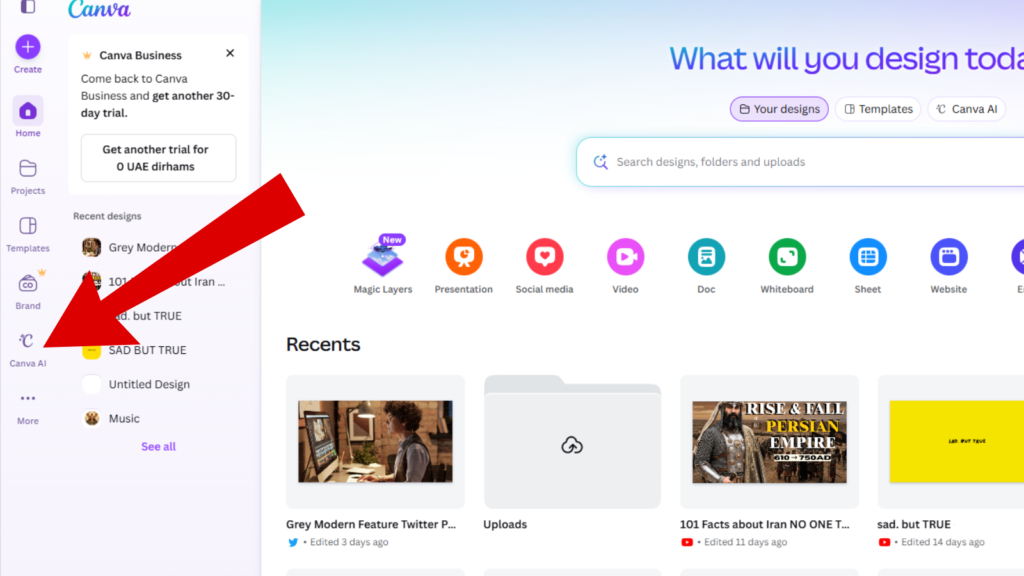
Canva AI (chat interface) - launched in late 2024 and fully mature by 2026, Canva AI is a conversational design assistant. You type what you want - “create a 10-slide pitch deck for a social media agency targeting e-commerce brands” - and Canva AI generates a full, styled, editable design in seconds. We have used it to generate first-draft client decks that required less than 20 minutes of editing to become deliverable. For freelancers billing by the hour, this is a serious productivity multiplier.
Dream Lab - Canva’s AI image generator lets you create photorealistic images, illustrations, and stylised graphics from text prompts. In 2026, Dream Lab supports aspect ratios, style presets, and image editing - meaning you can generate an image and then modify individual elements within it. The quality is competitive with Midjourney for editorial and marketing uses.
Magic Write - AI-powered copywriting built directly into the canvas. Useful for generating first-draft captions, presentation text, document content, and social copy. Not a replacement for a skilled copywriter, but excellent for overcoming blank-page syndrome.
Magic Edit / Magic Erase / Magic Grab / Magic Expand - the practical day-to-day AI tools that freelancers will reach for constantly. Magic Edit lets you paint over an object and describe what you want instead. Magic Erase removes objects from photos cleanly. Magic Grab turns flat image elements into individually moveable objects. Magic Expand extends the edges of an image outward, filling in content with AI. All of these work well in 2026 and genuinely save time on client asset work.
Magic Resize - possibly the single most valuable AI feature for freelancers who produce content across multiple platforms. One click resizes your design to any other format while intelligently repositioning and scaling elements. On Pro and above, you can resize to multiple formats simultaneously.
AI Voice - text to professional voiceover in seconds. Useful for freelancers producing video content, online courses, or social reels for clients who do not want to record their own audio.
Canva Code - a brand new 2026 feature that lets you build interactive digital experiences - calculators, quizzes, lead forms, micro-apps - directly inside a Canva design, without writing a single line of code. You describe what you want in plain language and Canva generates working, interactive code. This opens entirely new service offerings for freelance web designers and content creators.
What About Adding Your Own Assets to Canva?
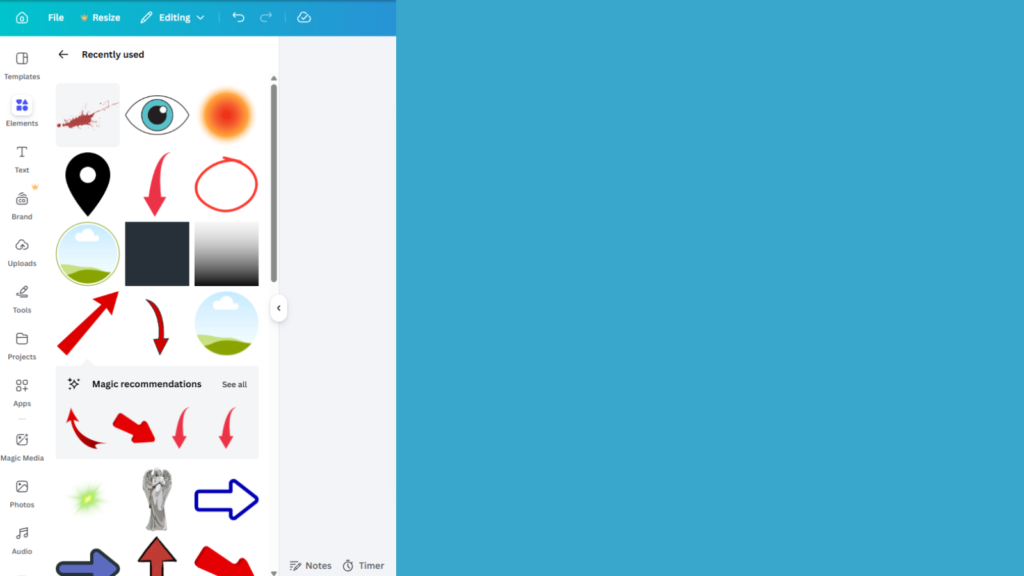
Adding your own assets is seamless. You can upload images (JPG, PNG, SVG, WEBP), video files (MP4, MOV), audio files (MP3, M4A), and fonts (OTF, TTF) directly from your device or via integrations with Google Drive, Dropbox, and other cloud storage platforms. Uploaded assets appear in your Uploads panel and are instantly available across all your designs.
Font uploads are particularly valuable for freelancers managing client brands - you upload the client’s brand font once, and it is available in every design you create for them from that point on. Storage limits are 5GB on Free, 100GB on Pro, 500GB on Business, and 1TB on Enterprise.
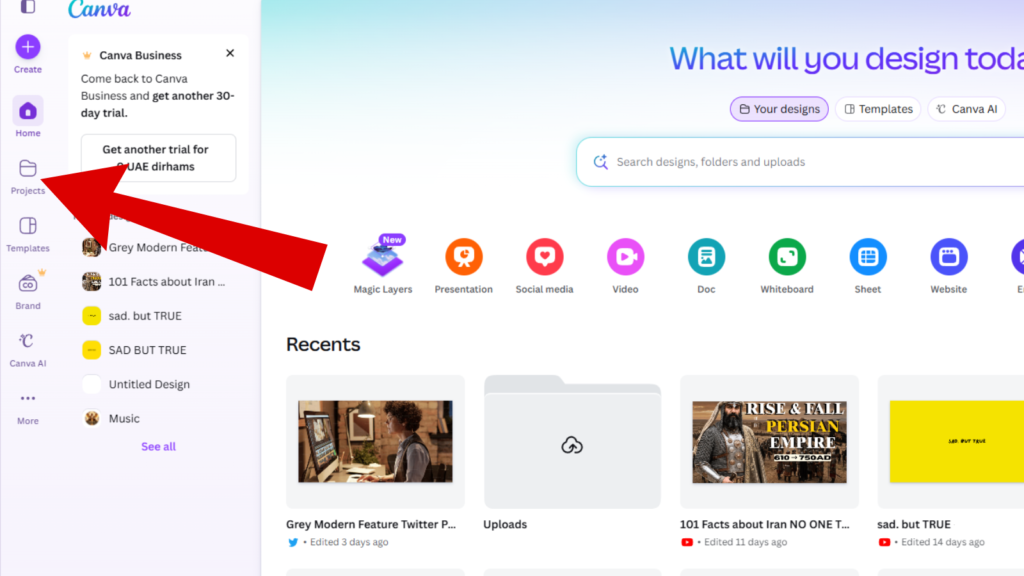
Photo Editing Options in Canva
Canva’s photo editing tools have expanded significantly in 2026, and this is where the Affinity acquisition starts to matter. Within the standard Canva editor, you get: brightness/contrast/saturation adjustments, filter presets, background removal (AI-powered, one click), background generation (describe a new background and AI fills it in), blur tools, shadow effects, crop and straighten, and color adjustment by element.
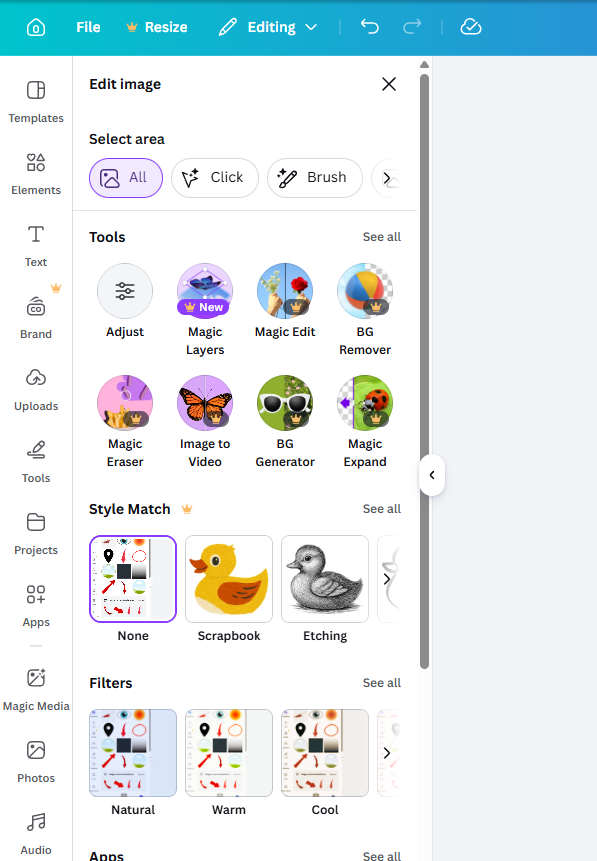
The new Designable Images feature lets you click on individual elements within a photo and edit them independently, as if they were separate layers. This was previously a Photoshop-exclusive workflow - having it in Canva, in a browser, in one click, is genuinely impressive.
For professional-level photo editing, the Affinity Photo integration (available on paid plans) brings a full non-destructive RAW photo editing environment into the Canva ecosystem. For everyday freelance work - client social graphics, presentation imagery, marketing collateral - Canva’s built-in tools are more than adequate. The Affinity integration is there when you need to go deeper.
Editing Videos in Canva
Canva’s video editor is capable, fast, and improving - but it is not a replacement for DaVinci Resolve, Premiere Pro, or even CapCut for complex video production. What it does well: trimming clips, adding text overlays and captions, applying transitions, adding background music, removing video backgrounds (AI-powered), animating elements, adding voiceovers via AI Voice, and producing polished short-form social video for Instagram, TikTok, and YouTube Shorts.
New in 2026: video color adjustment across all clips in one setting, audio balancing (AI automatically normalises fluctuating audio levels), and enhanced video animations with new effects including fades, reveals, ripples, and cross-platform transitions. The Image to Video feature lets you take a static image and animate it with camera motion, object movement, or style effects.
What it does not do well: multi-track audio mixing, advanced color grading, complex motion graphics, or handling very large video files efficiently. If a client asks you for a 30-minute documentary edit, open Premiere. If they need a 60-second brand video for LinkedIn, Canva will do it beautifully.
Creating Websites in Canva
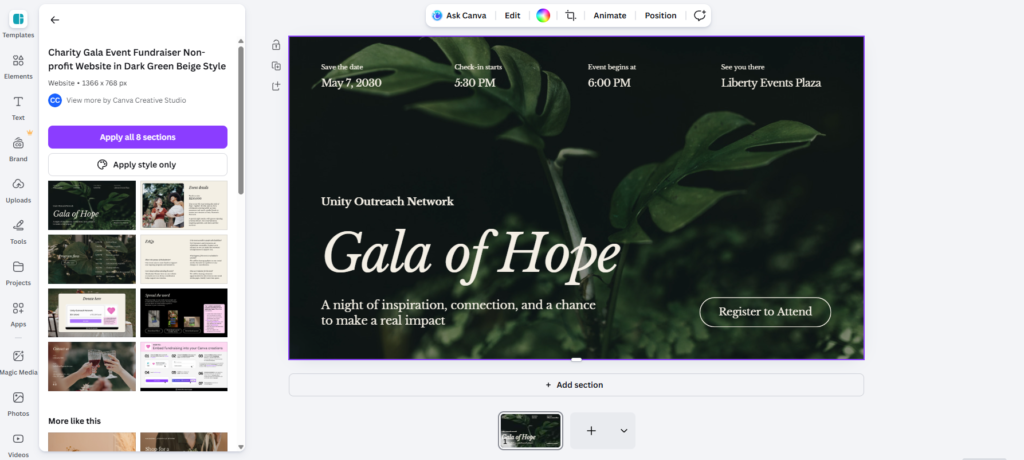
Canva’s website builder is one of the most underrated features in the entire product - and most freelancers have not even touched it. You start with any Canva design and, with one click, can turn it into a multi-page website. The resulting site is responsive, reasonably fast, and fully customisable. You can add navigation, interactive elements, video backgrounds, embedded Canva designs, and - new in 2026 - Canva Code widgets, meaning you can embed fully interactive, AI-generated micro-apps (calculators, quizzes, lead capture tools) directly into your Canva website.
For freelancers, this means you can deliver a professional, branded website to a small business client in a fraction of the time it would take to build in Squarespace or WordPress - and charge accordingly. Where Canva websites fall short: they are not true CMS platforms. There is no blog engine, no e-commerce functionality, no database, and limited SEO customisation. But for portfolio websites, landing pages, event pages, and simple business websites, Canva is excellent and wildly underused.
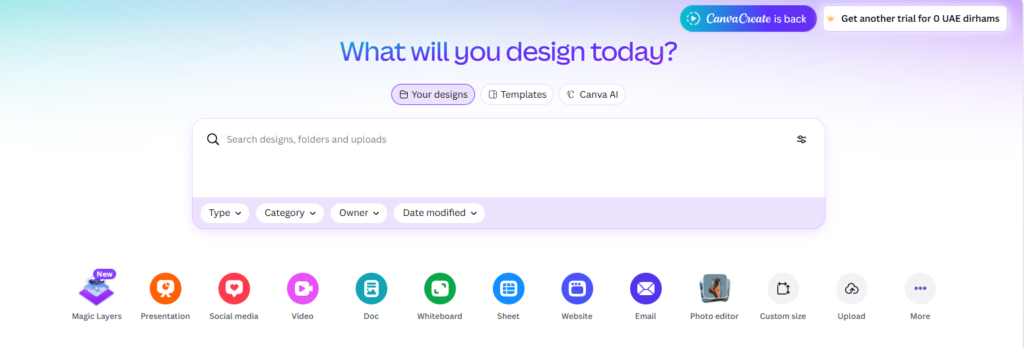
Making Your Canva Website Live
Publishing your Canva website takes seconds. From within the editor, you click “Publish website” and Canva gives you a free subdomain (yoursite.canva.site) immediately. You can also connect a custom domain - either a domain you own or one purchased through Canva. On the Free plan, your site is published on the Canva subdomain with Canva branding. On Pro and above, you can connect a custom domain and remove Canva branding.
Creating and Editing Documents in Canva Docs
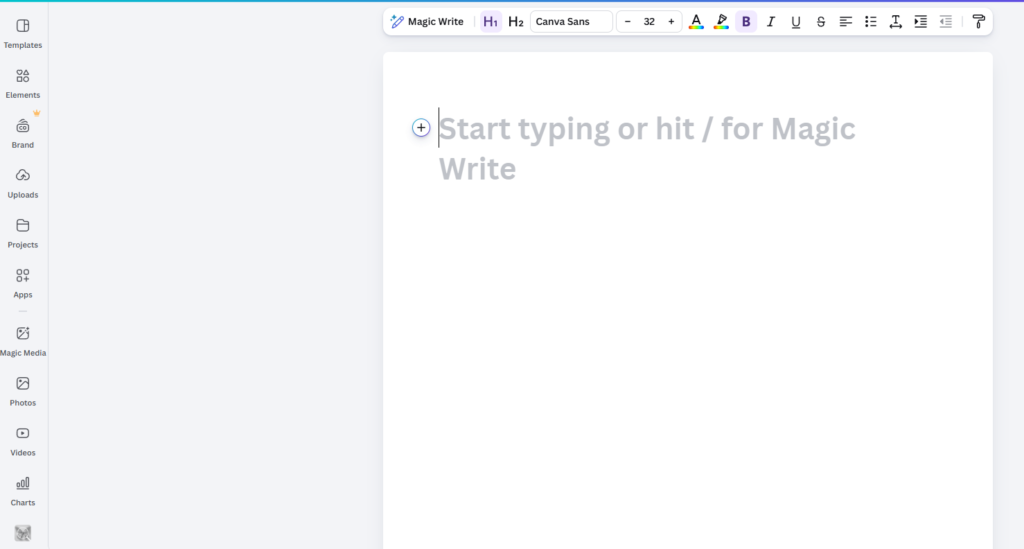
Canva Docs is Canva’s answer to Google Docs and Notion - and it is more visually capable than both. Docs supports all standard text formatting, tables, bullet points, headings, and embeds. What makes it different is that you can drop any Canva design - a chart, an infographic, a video, a branded graphic - directly into the document, and it renders live, not as a static image.
You can use Magic Write to generate document content from a text prompt, and you can convert documents into Scrollables - visually rich, scroll-animated stories that sit somewhere between a document and a presentation. Text highlighting and improved typography controls (including kerning and ligature support, new in 2026) make Docs significantly more polished for professional use.
For freelancers, Docs is extremely useful for: client proposals (embed pricing tables and brand mockups directly in the document), reports and case studies (live charts and data visualisations), SOPs and onboarding guides (clean, branded documents with embedded visuals), and content planning documents.
Creating Charts and Data Visualizations in Canva
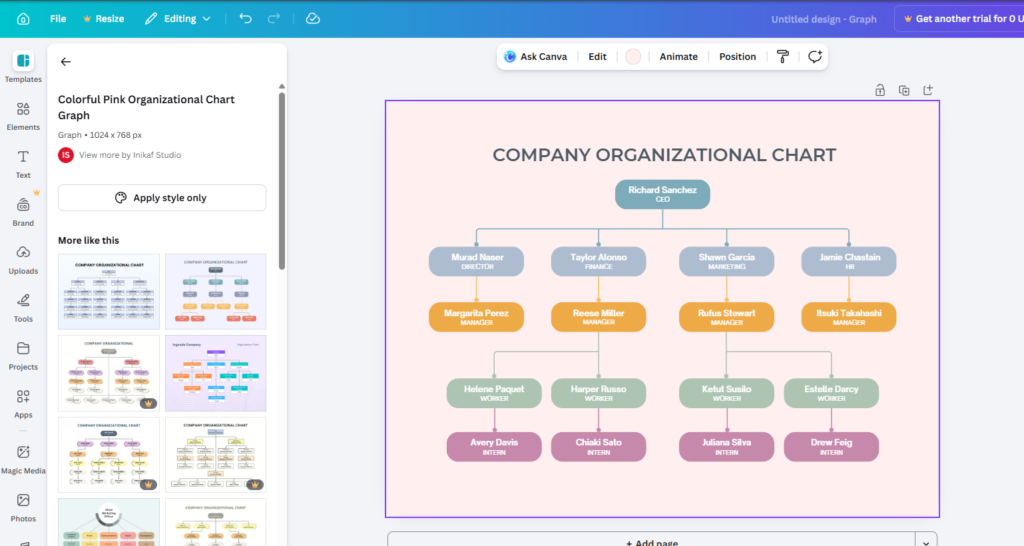
Magic Charts is one of the most genuinely impressive features Canva has shipped in the last 18 months. You paste in data or describe what you want to show, and Canva’s AI selects the appropriate chart type and renders a beautifully styled visualisation that matches your brand in one click. Bar charts, line graphs, pie charts, scatter plots, area charts - all styled and ready to drop into any design or document.
Magic Insights goes further - it analyses your data and surfaces patterns and trends using AI, then suggests how to visualise and present them. Useful for freelancers who produce monthly performance reports for clients.
Canva Sheets is the newest addition - a spreadsheet tool built inside Canva that supports data manipulation, Magic Formulas (plain-language formula generation), and direct live connections to external data sources like HubSpot and Google Analytics via Data Connectors. When your source data updates, the charts in your Canva design update automatically.
Making Products with Canva
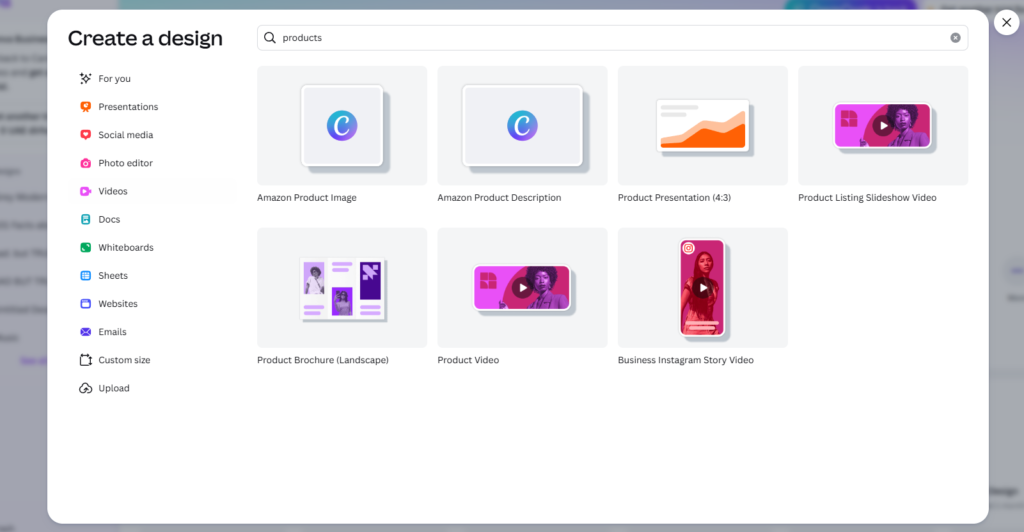
Canva has a print and product fulfilment service built directly into the platform. From any design, you can order: business cards, flyers, posters, brochures, banners, mugs, t-shirts, phone cases, notebooks, and more - with Canva handling printing and shipping. For freelancers, this is useful in two ways. First, you can offer print design as a service - design the assets in Canva, have them printed and drop-shipped directly to the client without ever handling physical products. Second, for your own brand - getting a professional business card set or branded notebook printed takes about five minutes.
Using Canva for Presentations
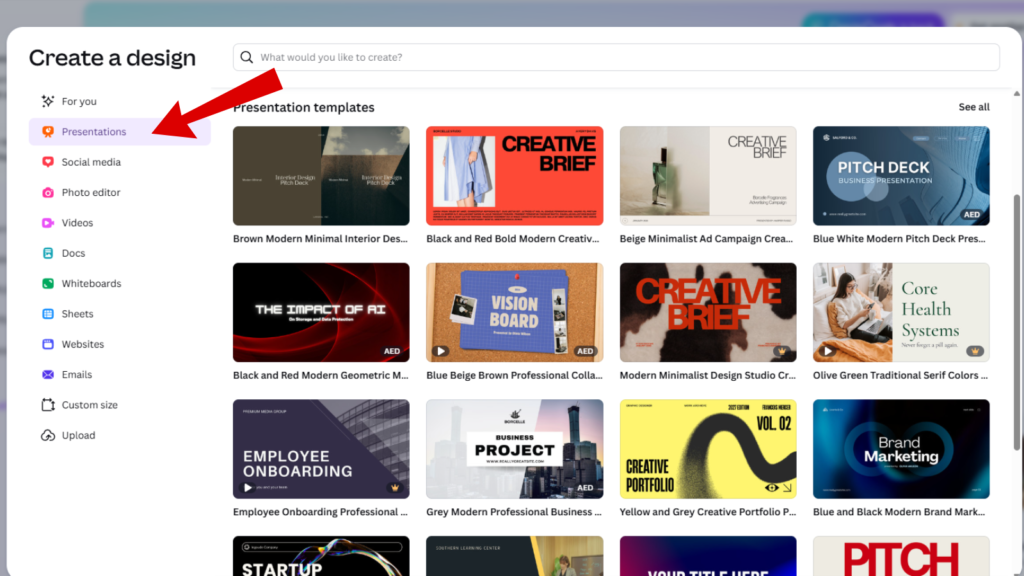
Presentations might be Canva’s single most powerful use case for freelancers. The 2026 feature set includes: presenter mode with speaker notes (Magic Write can generate these from your slide content), audience Q&A tools, polls and quizzes (new in 2026 - embed live interactive polls into your slides), automatic page numbering, on-click animations (elements appear sequentially as you click), draw-in-present mode (highlight and annotate slides as you present), offline presenting (download your presentation for delivery without internet), and remote presenting links.
The quality of Canva’s presentation templates is consistently high - far above what you get from PowerPoint or Google Slides. For freelancers who pitch to clients regularly, the difference in perceived professionalism between a standard PowerPoint deck and a Canva-designed presentation is significant.
Scrollables deserve special mention - this content format turns your presentation into an immersive, scroll-animated story. Ideal for sending as a link rather than presenting live, Scrollables are outstanding for async client proposals and case studies.
Collaboration in Canva
Real-time collaboration in Canva is smooth, genuinely useful, and available on all plans. Multiple users can be on the same design simultaneously, seeing each other’s cursors, making edits, and leaving comments. Comments can be threaded, replied to, and resolved - creating a proper feedback workflow without needing to switch to email or Slack. You can assign tasks directly within a design, tagging a team member to action specific changes.
On Business and Enterprise plans, you get Team Admin tools: approval workflows (where designs must be approved before they can be shared or published), AI admin controls (restrict which AI tools team members can use), team-only share links, and reporting on design activity across your organisation.
For freelancers working solo, the collaboration features are mostly useful for client review cycles - share a link, client comments directly on the design, you address the feedback, everyone stays in the same place. The days of emailing PDFs and receiving feedback in a wall of bullet points are over.
Exporting Your Work from Canva
Export Formats
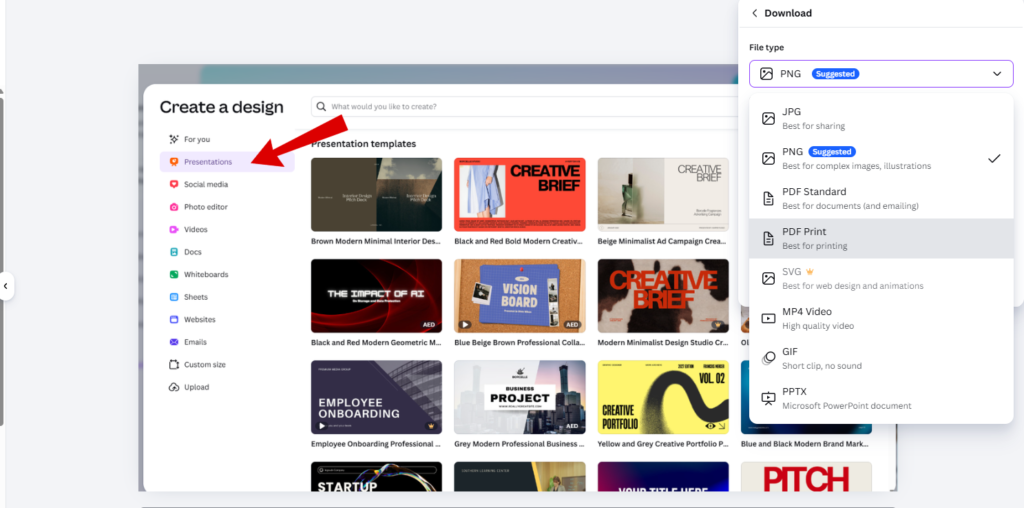
Canva supports: PNG, JPG, PDF (standard and print-ready), SVG, MP4, GIF, PPTX (PowerPoint), and DOCX. SVG export is available on Pro and above - significant for freelancers producing logo work or icon sets. PPTX export is a lifesaver when clients insist on receiving a PowerPoint file they can edit themselves.
Resolution of Exports
Standard PNG/JPG exports default to the canvas resolution - adequate for most social and screen use. Pro users can export at up to 4x resolution, sufficient for most print work. However, Canva does not have true DPI control in the way Illustrator or InDesign does. When exporting for professional print production, always use the PDF Print option with bleed marks enabled and confirm with your print provider.
Source File Limitations
This is one of Canva’s most significant limitations. Canva’s native files are proprietary and can only be opened inside Canva. You cannot hand a client a Canva source file they can open in Photoshop, Illustrator, or InDesign. If a client asks for editable source files in the traditional agency sense, you have two options: export as PPTX or DOCX (which preserves some editability), or provide them Canva access to their own designs. For clients who specifically need .AI, .PSD, or .INDD source files, Canva is not the right tool for that deliverable. Set expectations upfront.
Embedding Canva Projects Elsewhere
Canva designs can be embedded on external websites via an embed code that Canva generates. This works for presentations, portfolios, and website pages. Embedded Canva designs are live - if you update the design in Canva, the embedded version updates automatically wherever it is embedded. For freelancers managing ongoing client content like regularly updated pricing sheets or team directories, this live-sync embed feature is incredibly useful.
Canva’s Magic Resize Tool
Magic Resize is the feature that, more than any other, converts sceptical freelancers into committed Canva users. You design something once. Then you click Resize, select every other format you need - Instagram Story, LinkedIn Post, Facebook Ad, YouTube thumbnail, Twitter header, email banner, website hero - and Canva resizes to all of them simultaneously, intelligently repositioning and rescaling elements. In 2026, Magic Resize works across video formats as well as static designs, and it is available in bulk operation mode on Pro and above. For freelancers managing social media for clients, this alone justifies the cost of Canva Pro many times over.
Ensuring Brand Consistency with Canva
Canva’s Brand Kit Feature
Brand Kit is Canva’s brand management system. Within a Brand Kit, you store: your brand’s colour palette, your brand fonts (upload custom fonts or select from Canva’s library), your logo files (multiple variants - primary, secondary, reversed, icon-only), and brand image and graphic assets. Once your Brand Kit is set up, every time you open a template or create a new design, you can apply your Brand Kit in one click - instantly recolouring all elements, swapping all fonts, and inserting your logo. Staying on-brand becomes the path of least resistance.
Free users get one Brand Kit with three colours. Pro users get five Brand Kits. Business users get 100 Brand Kits. Enterprise gets 1,000.
Brand Controls (Business and Enterprise) extend this further: element locking, template restrictions, replacement of logos and imagery across multiple designs in one action, and approval workflows before anything goes out.
Canva’s Template Library
With 3.6 million+ templates available on paid plans (1.6 million on Free), Canva has the largest template library of any design platform by a significant margin. Template quality in 2026 is visually sophisticated, clearly categorised, and searchable by style, industry, color palette, and content type. For freelancers, templates provide both a fast starting point and a source of creative inspiration. Tip: if you create a design system you love for a client, save it as a custom template within their Brand Kit.
Stock Photos, Videos, and Audio
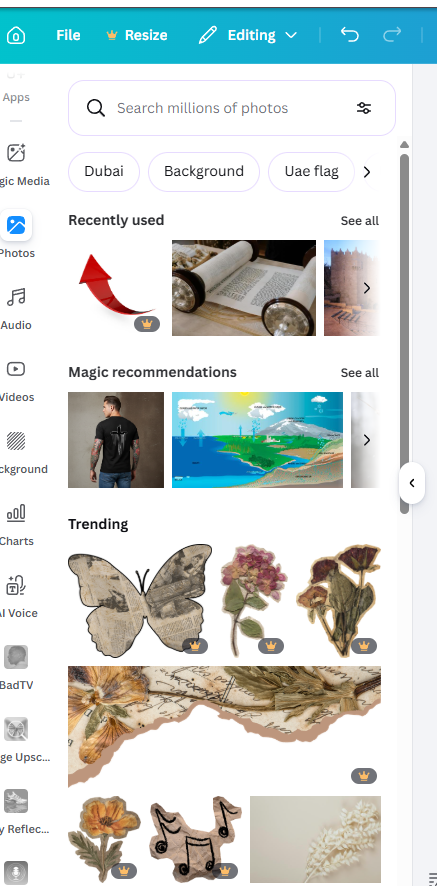
On the Free plan, Canva provides access to over 4.7 million photos, videos, graphics, and audio files. On Pro and above, the library expands to 141 million+ premium stock assets, including photography, video footage, music tracks, and sound effects from professional stock providers. The quality at this tier is excellent for marketing and commercial use.
A practical tip for freelancers: Canva’s stock library is cleared for commercial use in designs created and distributed via Canva. However, if you export an image standalone and use it outside Canva, the licensing terms are different. Always check Canva’s content license if you are using stock assets in high-visibility commercial applications.
Canva Apps and Integrations
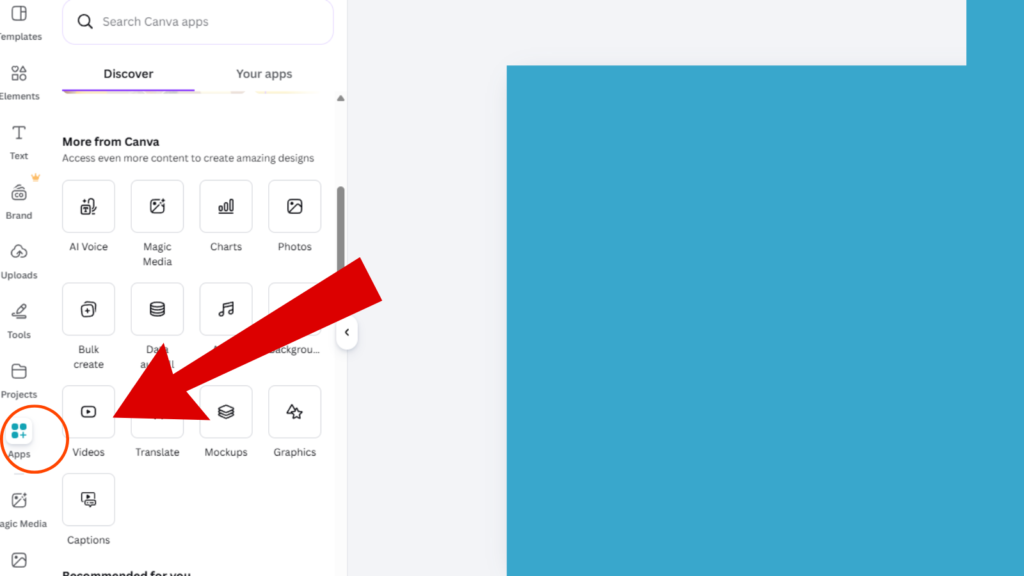
Canva’s App Marketplace contains hundreds of integrations with third-party tools. Notable integrations for freelancers: Google Drive, Dropbox, OneDrive (for asset import and export), HubSpot, Mailchimp, and Constant Contact (for direct publishing of email templates), Meta Ads, LinkedIn, Instagram, Twitter/X, and Pinterest (for direct social publishing via the Content Planner), Google Analytics and HubSpot (via Data Connectors for live chart data), Pexels, Pixabay, and Getty Images (additional stock libraries).
Canva Grow is a 2026 addition specifically aimed at marketers and business-focused freelancers. It combines AI ad creation (generate ad creatives from a URL or brief) with Ad Insights - real performance data from your Meta and Google ad campaigns, surfaced directly within Canva so you can see which ad creatives are performing and iterate on them without leaving the platform.
Leonardo.Ai Essential and Flourish Presenter plans are now included with Canva Business - giving Business subscribers access to Leonardo.Ai’s professional AI image generation and Flourish’s advanced data visualisation tools at no extra cost.
Mobile Apps
Canva’s iOS and Android apps are exceptionally well-designed. The mobile experience supports the full feature set, including AI tools, Brand Kit, collaboration, and export. For freelancers who work on the go, the ability to pick up a client design on your phone during a commute and make edits that sync instantly to the desktop version is a significant quality-of-life improvement.
Customer Support
Customer support is one of the weaker areas of Canva’s offering, particularly on Free and Pro plans. Free and Pro users are directed primarily to Canva’s Help Center (comprehensive, well-written, and useful for most common questions) and a support ticket system. Response times on tickets can be slow - 24-48 hours is typical. Live chat support is available on Business and Enterprise plans, which is a meaningful upgrade. Enterprise customers also get elevated support priority and a dedicated customer success manager.
Canva’s AI Help Assistant - embedded within the platform - handles a large proportion of common queries effectively and is the fastest route to answers for standard questions. The honest advice for freelancers: the Help Center and Canva’s YouTube channel together cover almost everything you will encounter. For genuine technical issues, support ticket response times are adequate but not impressive.
Pricing and Value for Money
Canva Pricing Plans
Canva Free vs Pro
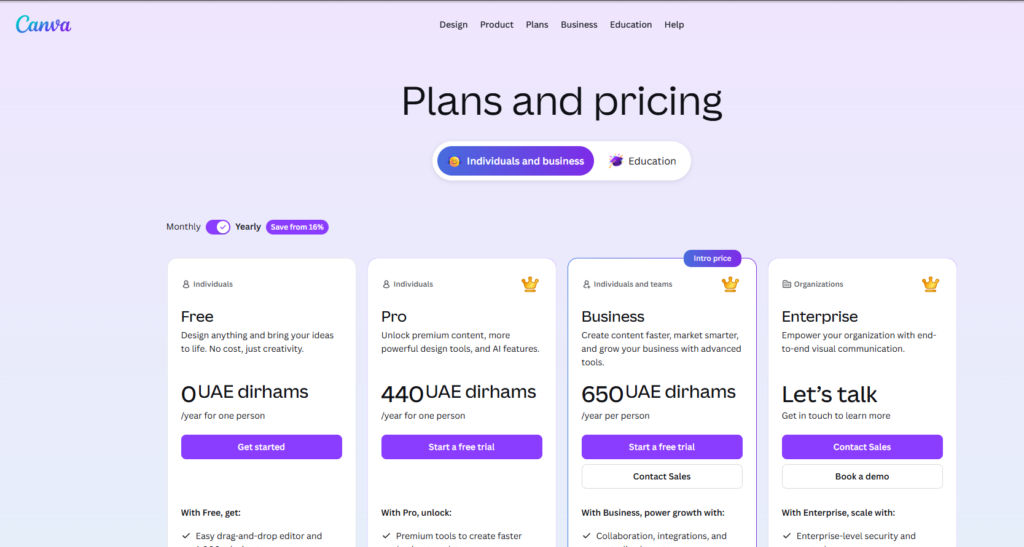
Canva Free is one of the most generous free tiers in any software category. You get 1.6 million+ templates, 4.7 million+ stock assets, the full drag-and-drop editor, one Brand Kit (3 colors), 5GB of storage, limited AI access, and the ability to publish websites and create presentations, docs, and videos. For a freelancer just starting out, the Free plan is completely viable.
Canva Pro is priced at approximately $15/month (or ~$120/year on the annual plan) for one person. What you get: 3.6 million+ premium templates, 141 million+ stock assets, five Brand Kits, 100GB storage, Magic Resize (including at scale), background removal and translate at scale, SVG export, the Content Planner for social scheduling, and high AI access for all premium tools. If you bill a single client for a single project per month, Canva Pro pays for itself many times over. We rate it as essential for any freelancer who produces visual content professionally.
Canva Business
Canva Business is priced at approximately $30/month per user (or ~$200/year on annual). It adds: 100 Brand Kits, 500GB storage, Team Admin tools (approvals, reports, AI controls), higher AI access, Canva Grow (Ad Insights and AI ad creation), access to Leonardo.Ai Essential, and access to Flourish Presenter. For freelancers who manage social media or paid advertising for clients, or who work within a small agency team, the Business plan is a strong choice. For pure solo design work, Pro is likely sufficient.
Canva Enterprise
Canva Enterprise is a custom-priced plan for organisations of 100+ seats. It includes everything in Business plus: SSO and SCIM provisioning, 1,000 Brand Kits, 1TB storage, custom integrations, enterprise security controls, IP indemnity on AI-generated content (important for commercial work), and a dedicated success manager. For individual freelancers, Enterprise is not relevant. For freelancers who have grown into agencies, it is worth a conversation with Canva’s sales team.
Canva Review: The Verdict
After thorough, hands-on testing across every feature category, our verdict is clear: Canva in 2026 is the single most valuable design tool available to freelancers, and it is not particularly close. Nothing else on the market combines this breadth of capability, this ease of use, and this price point. Not Adobe Express. Not Microsoft Designer. Not even Figma - which remains the better tool for product design and complex UI work, but lacks Canva’s breadth for general visual content production.
The AI features are genuinely useful - not marketing fluff. The Brand Kit system is a genuine business tool. Magic Resize alone is worth the Pro subscription for any freelancer producing multi-platform content. And the 2026 additions - Canva Code, Canva Sheets, Canva Grow, the Affinity integration, Canva AI chat - signal that this platform is moving upmarket fast.
Pros and Cons of Canva
Pros of Using Canva
- Exceptional ease of use - the lowest learning curve of any professional-grade design tool
- Canva Free is genuinely useful - not a crippled trial, a real working tool
- Pro plan delivers outstanding ROI - the best value design software subscription for freelancers
- Magic Resize is a genuine time-saver - multi-platform content production in a fraction of normal time
- Brand Kit system is excellent - makes brand consistency the path of least resistance
- AI tools are practical and well-integrated - Canva AI, Dream Lab, Magic Write, Magic Edit all save real time on real work
- Collaboration is smooth and client-friendly - no more emailing PDFs and chasing feedback
- Canva Code is a game-changer - build interactive experiences without coding knowledge
- Affinity integration (paid plans) - access to professional-grade photo and graphic design tools at no extra cost
- Template library is vast and high quality - 3.6 million+ templates covering every use case
- Mobile apps are genuinely capable - full feature access on iOS and Android
- Canva Docs, Sheets, and Websites - removes the need for multiple separate tools
Cons of Using Canva
- Proprietary source files - cannot export editable .AI, .PSD, or .INDD files
- Limited true print production support - not suitable for large-format or colour-critical print work
- Video editor is capable but not professional-grade - complex video projects still require a dedicated NLE
- Customer support is slow on Free and Pro - live chat only on Business and above
- AI usage is pooled and limited on lower plans - heavy AI users may hit monthly caps
- Website builder lacks CMS and e-commerce - not suitable for complex or content-heavy client websites
- Layer management can frustrate - for very complex designs, the lack of a proper layers panel becomes limiting
- Vendor lock-in is real - your entire design archive lives in Canva’s proprietary format
Alternatives to Canva
Adobe Express - Adobe’s answer to Canva. Good integration with Adobe Creative Cloud if you are already in that ecosystem. But the free plan is weaker, the template library is smaller, and the overall tool feels less polished. Worth considering if you need tight Adobe CC integration; otherwise, Canva wins on almost every metric.
Microsoft Designer - AI-first design tool, free for Microsoft 365 subscribers. Improving rapidly but still lacks Canva’s depth, template library, and collaboration features. Good for occasional use within a Microsoft workflow.
Figma - the correct choice for product design, UI/UX, and complex multi-component design systems. If your freelance work is primarily digital product design, Figma is your primary tool. For everything else - marketing, social, presentations, documents, websites - Canva is faster and more capable.
Piktochart / Visme - specialist tools for infographics and data presentations. Narrower scope than Canva, and less capable across the board for general design work. Relevant only if infographics are your primary deliverable.
Adobe Illustrator / Photoshop - still the standard for professional vector and photo editing at the highest level. If your clients routinely ask for print-production-ready deliverables or complex illustration, you need Adobe CC. But for most freelance visual content work, Canva replaces both tools with a fraction of the learning curve and cost.
Canva User Reviews
Canva consistently receives strong ratings across major review platforms. On G2, it holds a 4.7/5 from over 4,000 reviews. On Capterra, it scores 4.7/5. On Trustpilot, it sits at approximately 4.3/5.
Common themes in positive reviews: ease of use, time saved, template quality, brand consistency tools, and the improvement in AI features. Common themes in critical reviews: source file limitations, occasional performance issues with large designs, and customer support response times.
The consensus among freelancers who have adopted Canva seriously is consistent: it significantly reduces the time spent on design deliverables, lowers the barrier to producing professional-looking work, and pays for itself rapidly.
2026 New Features Not in the Standard Headings
Several significant additions arrived in 2025/2026 that deserve specific attention for freelancers:
Canva Code - Build functional, interactive web experiences (calculators, quizzes, lead forms, micro-tools) inside any Canva design or website using plain-language prompts. No coding required. This opens entirely new service offerings for freelancers - “interactive content design” - that commands significantly higher rates than static graphic work.
Canva Sheets - A full spreadsheet tool inside Canva with Magic Formulas (plain-language formula generation), live data connectors to HubSpot, Google Analytics and more, and direct integration with Magic Charts. For freelancers who produce data-driven reporting for clients, this is transformative.
Canva Grow - The new marketing intelligence layer. AI ad creation from a URL or brief, plus Ad Insights that surface Meta and Google ad performance data directly inside Canva. For freelancers managing paid social for clients, this is a compelling reason to upgrade to Business.
Affinity Integration - Canva’s acquisition of Affinity (Photo, Designer, Publisher) is now integrated into paid plans. This gives freelancers access to on-device, professional-grade photo editing (Affinity Photo), vector design (Affinity Designer), and desktop publishing (Affinity Publisher) as part of their Canva subscription - at no additional cost. The on-device AI tools in Affinity (Generative Fill, Expand, Generate Images and Vectors) are included in paid plans and do not count toward your monthly premium AI usage pool.
Canva AI (Chat Interface) - The conversational AI assistant that generates full, styled, editable designs from plain-language prompts. Fully mature in 2026 and producing genuinely deliverable first drafts for common freelance formats.
Scrollables - A new content format that converts documents and presentations into scroll-animated, immersive stories. Outstanding for async client proposals sent as links rather than presented live.
Polls and Quizzes in Presentations - Embed live, interactive polls and quizzes directly into Canva presentation slides. Audience members respond on their phones in real time. Genuinely useful for freelancers delivering workshops, training, or live pitches.
Canva Design School 2.0 - Free design courses, certifications, and tutorials available in multiple languages. For freelancers who want to sharpen their design skills without paying for external courses, this is a valuable (and free) resource.
Team Context (Enterprise/select) - Canva’s AI learns your team’s brand preferences, past designs, and usage patterns over time, making AI-generated suggestions progressively more on-brand and relevant. Early access feature with broad rollout expected through 2026.
Canva Review - FAQ
Is Canva free? Yes. Canva Free is genuinely free, forever, with no time limit. It is not a trial. You get 1.6 million+ templates, the full design editor, one Brand Kit, 5GB storage, and limited AI access at no cost.
Is Canva Pro worth it for freelancers? Almost certainly yes, if you produce visual content for clients professionally. Magic Resize alone typically saves multiple hours per month for any freelancer managing multi-platform content. At approximately $120/year, it pays for itself from a single client project.
Can I use Canva for client work? Yes. Designs created in Canva using Canva’s stock assets are licensed for commercial use. If you use uploaded client assets, those are governed by whatever rights the client holds. Always confirm licensing when using stock assets in high-visibility commercial applications.
Does Canva replace Photoshop? For most freelance use cases, yes - especially with the Affinity integration on paid plans. For specialist professional photo editing at the highest level, Photoshop remains the standard. For everyday marketing, social, and client collateral work, Canva with Affinity Photo integration covers the territory at a fraction of the cost.
Can I collaborate with clients on Canva? Yes. Share a design link with your client and they can comment directly on it, even without a Canva account. On paid plans, you can control whether clients can view, comment, or edit.
What happened to Canva Teams? Canva Teams is no longer available for new sign-ups. Existing Teams users remain on their current plan. New users who need team functionality should look at Canva Business, which replaces Teams with more powerful tools.