Raycast Review 2026: AI Mac Launcher for Freelancers (Tested)
Raycast Review 2026: The AI Mac Launcher Every Freelancer Should Try
I have tested dozens of Mac utilities over the years, and very few have stuck around on my dock for more than a month. This Raycast review explains why this AI-powered launcher earned a permanent spot after just one week of daily use. If you spend your days on a Mac juggling client work, code, creative projects, and endless browser tabs, you need to pay attention.
Raycast started as a replacement for Spotlight search but has grown into something far more ambitious. Today it functions as a command center for your entire machine, with deep AI integration, custom extensions, and automation tools built right in. I explored every corner of the app to see if it lives up to the enthusiasm I kept seeing online.
Quick Verdict
Raycast is the most impressive Mac productivity tool I have used in 2026, offering instant app launching, AI assistance, clipboard history, and deep customization through community extensions. The free tier is remarkably generous, and even the Pro upgrade at $10 per month feels like a bargain for power users. Some features require technical confidence, but the basics are accessible to everyone.
Our Overall Rating: 4.4 out of 5
I rated Raycast 4.4 out of 5 because it combines speed, intelligence, and extensibility in a way no other Mac launcher does. The AI chat integration is genuinely useful for quick research and text generation. The only reason it does not score higher is that Windows users are left out entirely, and some advanced features have a learning curve.
What Is Raycast?
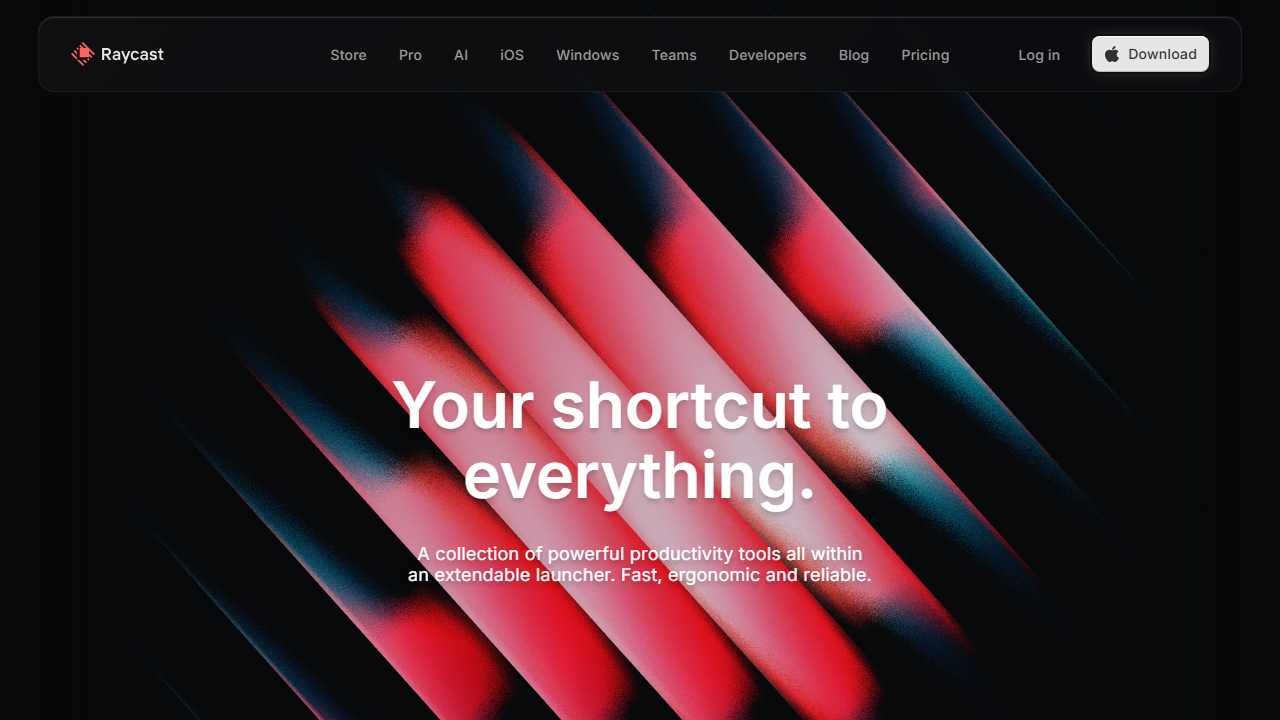
Raycast is a launcher and productivity platform designed exclusively for macOS. It replaces the default Spotlight search with a faster, more powerful alternative that can open apps, run scripts, manage windows, search files, and interact with AI models. The development team has roots in building developer tools, and that pedigree shows in the app’s speed and flexibility.
For freelancers, Raycast matters because it removes friction from nearly every common computer task. Need to open a specific Figma file? Type a few characters. Want to resize a window to exact dimensions? A single command does it. Need to recall something you copied three hours ago? Your clipboard history is instantly searchable.
I installed Raycast on a Monday morning and by Wednesday I had stopped reaching for my mouse for about half my daily actions. The muscle memory developed quickly because the app responds instantly and predictably. That kind of workflow acceleration is rare and valuable for independent workers who bill by the hour or project.
How to Get Started with Raycast
Installing Raycast takes less than a minute, but unlocking its full potential requires some exploration. I recommend a gradual approach where you start with basic launching and add features as you get comfortable. Here is exactly how I set it up.
Step 1: Download and Install
Visit raycast.com and download the Mac application. The installer is simple and places the app in your Applications folder. On first launch, you will grant accessibility permissions so Raycast can manage windows and interact with other apps.
Step 2: Set Your Hotkey
By default, Raycast opens with Option and Space. I kept this because it felt natural, but you can change it to Command and Space if you prefer replacing Spotlight entirely. The hotkey becomes the gateway to your entire system, so choose something you can hit without thinking.
Step 3: Explore the Store
Raycast has a built-in store with hundreds of extensions made by the community and official partners. I installed extensions for Figma, GitHub, Spotify, and my preferred AI model. Each extension adds new commands that you can trigger with typed shortcuts.
Step 4: Configure AI Features
The Pro plan unlocks AI chat directly inside Raycast. I connected my preferred model and began using it for quick text summarization, email drafting, and code explanation. The AI lives one hotkey away, which is faster than opening a browser tab.
Step 5: Build Custom Workflows
Once you are comfortable, you can create custom scripts and shortcuts. I built a command that opens my current project folder in VS Code, launches the dev server, and opens my task manager in one action. These personal automations are where Raycast becomes irreplaceable.
Raycast Key Features for Freelancers
Raycast is packed with features that solve real problems for independent workers. I spent weeks testing each capability in actual project workflows. Here is what I found most valuable.
Lightning-Fast App and File Launching
The core launcher is faster and smarter than macOS Spotlight. Type the first few letters of any application, file, or folder and Raycast surfaces it instantly. I found it particularly good at learning my habits so that frequently used items rise to the top with fewer keystrokes.
You can also search within applications. For example, I can type part of a Safari tab title and jump directly to it without manually hunting through windows. This alone saved me minutes every day during research-heavy projects.
The file search supports fuzzy matching, which means you do not need exact filenames. I often remembered only part of a client document name and still found it immediately. The search feels intelligent in a way that Spotlight sometimes does not.
AI Chat and Commands
Raycast Pro includes an AI chat panel that you can summon with your hotkey. I used it constantly for small tasks like rewriting an email subject line, explaining a terminal error, or summarizing a long article. The AI lives inside your workflow rather than in a separate app.
You can also create AI commands that process selected text. I built one that turns messy brainstorming notes into structured task lists. Another command rewrites my drafts in a more professional tone for client communications.
The AI integration supports multiple models, so you can choose the one that fits your needs and budget. I appreciated having control over which provider powered my assistant. Switching between models takes just a few clicks in settings.
Clipboard History
Raycast remembers everything you copy and makes it searchable. I set my history to retain items for thirty days, which meant I could recover that perfect color hex code I copied last Tuesday or that client address from yesterday morning.
The clipboard manager supports text, images, and files. I found the image history especially useful when working on design projects where I copied screenshots frequently. Being able to paste something from three copies ago without redoing the work is a quiet superpower.
You can pin frequently used snippets so they always appear at the top. I pinned my standard email signature, common terminal commands, and my current mailing address. These pinned items turned into a personal snippet library.
Window Management
Raycast includes powerful window management without requiring a separate utility. I set up keyboard shortcuts to snap windows to halves, thirds, and specific screen positions. For multi-monitor setups, you can move windows between displays with a single command.
I created a command that arranges my typical freelance workspace: browser on the left half, code editor on the right, and notes app in a floating window. One keystroke and my entire layout is ready. This eliminated the tedious manual resizing I used to do every morning.
The window management works with multiple monitors and handles ultrawide displays well. I tested it on a dual-monitor setup and a single ultrawide screen. Both worked without the glitches I have experienced in dedicated window managers.
Extensions and Community Store
The Raycast Store contains thousands of extensions that add functionality for popular tools. I installed extensions for Jira, GitHub, Notion, and Linear so I could search tasks and issues without opening those apps. The community is active and new extensions appear weekly.
Installing an extension takes one click and it immediately becomes available through your hotkey. I added a password manager extension that lets me copy credentials without opening the full password app. Another extension controls my music playback with typed commands.
If you have coding skills, you can build your own extensions using React and TypeScript. I created a simple one that fetches my current freelance hours from a time-tracking API. The development experience was smooth thanks to good documentation and templates.
Snippets and Text Expansion
Raycast includes a snippet manager that replaces dedicated text expansion tools. I created snippets for common email openings, contract clauses, and project update templates. Typing a short abbreviation expands it into full paragraphs instantly.
Snippets support placeholders and dynamic content like dates. I built a project kickoff snippet that inserts today’s date and a standard checklist. Another snippet generates my standard invoice reminder with the current month filled in automatically.
The snippet search integrates with the main launcher, so you can find and insert them without remembering exact abbreviations. I often searched by keyword when I forgot the trigger. This forgiving workflow made the feature more useful than traditional text expanders.
Calculator and Conversions
Raycast includes a surprisingly capable calculator that handles complex math, unit conversions, and currency exchange. I used it constantly for quick client rate calculations and timezone conversions. The results copy to your clipboard with one keystroke.
You can type natural language queries like “fifty dollars to euros” or “two hundred words divided by four minutes.” The parser understands context and delivers accurate results. I found this faster than opening a calculator app or searching Google.
Timezone conversion was particularly helpful for freelancers working with international clients. I set up my common client zones and could instantly see what time it was for them. No more mental math or separate world clock apps.
Pricing: Is It Worth It?
Raycast uses a freemium model that is unusually generous compared to competitors. Most freelancers will find the free tier covers the majority of their needs. Here is the full pricing breakdown for 2026.
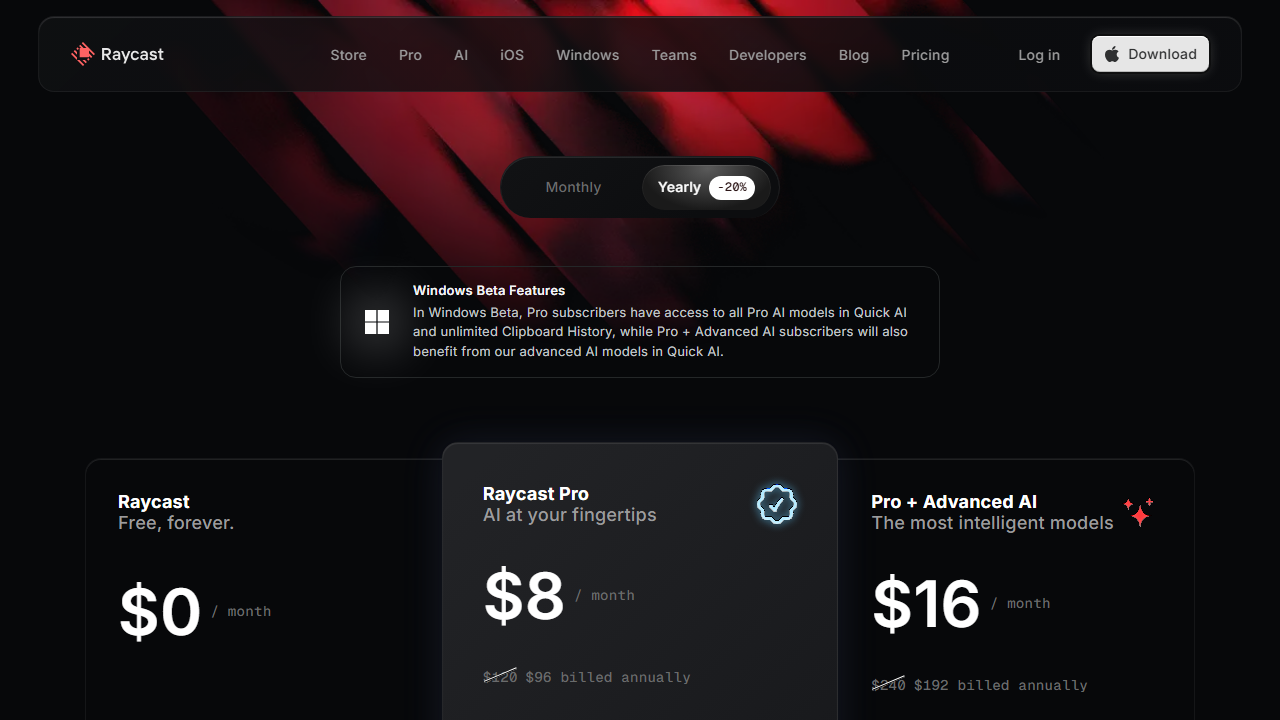
- Free: $0 per month. Includes app launching, file search, clipboard history, window management, calculator, snippet manager, and access to the full extension store. This tier is genuinely useful without any upsell pressure.
- Pro: $10 per month, or $96 per year if billed annually. Adds AI chat, custom AI commands, cloud sync for settings, unlimited clipboard history, and Pro-only themes. This tier is aimed at power users who want the AI features.
- Team: $20 per user per month. Includes shared commands, team extensions, collaborative snippets, and admin controls. This is designed for agencies and studios rather than solo freelancers.
I used the free tier for two weeks before upgrading to Pro to test the AI features. The free version alone was good enough that I would have kept it indefinitely. The Pro upgrade felt worthwhile because the AI chat saved me from opening browser tabs dozens of times per day.
At $10 per month, Pro is priced fairly against standalone AI tools. You are essentially getting a launcher, clipboard manager, window manager, and AI assistant in one subscription. If you currently pay for multiple separate utilities, Raycast Pro might replace them.
The Team plan at $20 per user is only relevant if you work in a studio or agency context. Solo freelancers should ignore it. I did not test Team features because they fall outside the scope of independent work.
Pros and Cons
Raycast impressed me overall, but it is not without flaws. I tracked both the delightful moments and the frustrations throughout my testing. Here is the balanced view.
Pros
- The free tier is remarkably complete and useful on its own.
- Launching apps and finding files is faster than any alternative I have tried.
- Clipboard history with search is a daily productivity boost.
- Window management replaces separate tools like Magnet or Rectangle.
- The extension ecosystem adds nearly unlimited functionality.
- AI chat integration is convenient and well implemented.
Cons
- Mac only, so Windows and Linux freelancers cannot use it.
- The sheer number of features can feel overwhelming at first.
- Some advanced features require comfort with scripting or coding.
- Extension quality varies because many are community-built.
- AI features require a separate Pro subscription on top of any AI provider costs.
- Occasional bugs appear in newer extensions that have not matured yet.
Who Should Use Raycast?
Raycast is perfect for Mac-using freelancers who want to reduce mouse usage and speed up repetitive actions. Developers, designers, writers, and project managers all benefit from instant access to their tools. If you value keyboard-driven workflows, this app was built for you.
It is less suitable for people who prefer graphical interfaces and rarely use keyboard shortcuts. Raycast rewards users who invest time in learning commands and building muscle memory. If you are not willing to practice, you might not extract full value.
Windows users are completely out of luck, which is unfortunate given how good the app is. The development team has shown no signs of porting to other platforms. If you work cross-platform, you might prefer a tool like Alfred that has broader compatibility.
Freelancers who already pay for multiple productivity utilities should consider whether Raycast could consolidate those expenses. I replaced a clipboard manager, window manager, and snippet tool with this one free app. That simplification was worth the switch alone.
If you work with a team of subcontractors who also use Macs, the Team plan could standardize your shared workflows. Shared snippets and team extensions mean everyone uses the same shortcuts. I did not test this personally but see the appeal for small agencies.
Raycast vs Alfred: Which Mac Launcher Wins?
Alfred has been the king of Mac launchers for over a decade, so I directly compared the two during my testing. Raycast feels more modern, with a cleaner interface and better default integrations for current web services. Alfred’s Powerpack workflows are more mature for complex automation, but Raycast’s free tier and built-in AI are hard to beat.
I found Raycast faster for everyday launching, clipboard management, and window snapping. Alfred still leads in deeply customized workflows and trigger-based automation. For most freelancers, Raycast covers ninety percent of needs without the $34 Powerpack purchase.
If you are already invested in Alfred workflows, switching might not be worth the migration effort. For new users or those frustrated with Alfred’s older interface, Raycast feels like a generational leap. I switched personally and have no regrets after six weeks of daily use.
Raycast Review: Final Verdict
Raycast earns its 4.4 out of 5 by being the rare utility that improves nearly every aspect of daily computer use. I finished my testing period unable to imagine going back to the default Mac experience. The speed gains are real, the AI integration is practical, and the free tier removes any barrier to entry.
The Pro plan at $10 per month is a smart upgrade for anyone who uses the AI features regularly. Even without Pro, Raycast replaces multiple paid tools and accelerates your workflow. I recommend every Mac freelancer try the free version for at least a week.
This Raycast review confirmed that the best productivity tools are the ones you actually use without thinking. Raycast became invisible in the best way, always ready when I needed it and never in the way when I did not. That is the hallmark of excellent design.
If you are curious about other tools in this space, check out our Motion review for AI calendar scheduling or our Fathom review for meeting automation. Building the right tool stack makes freelancing significantly more enjoyable and profitable.
Frequently Asked Questions
Is Raycast really free to use?
Yes, Raycast offers a genuinely free tier that includes core launching, clipboard history, window management, snippets, and the full extension store. You only need to pay if you want AI chat features, cloud sync, or unlimited clipboard history. Most freelancers will find the free version sufficient for daily use.
Can Raycast replace Spotlight completely?
Absolutely. I disabled the default Command and Space shortcut for Spotlight and assigned it to Raycast instead. Raycast handles file search, app launching, and calculations better than Spotlight. You can still access Spotlight through another shortcut if you ever need it.
Does Raycast work on Windows or Linux?
No, Raycast is exclusively available for macOS. The development team has not announced plans for Windows or Linux versions. If you need a cross-platform launcher, consider alternatives like Alfred or Flow Launcher depending on your operating system.
How does Raycast compare to Alfred?
Alfred is Raycast’s closest competitor and has been around longer. I find Raycast more modern, faster, and better integrated with current web services. Alfred has a more mature workflow system for power users, but Raycast’s free tier and extension store give it an edge for most freelancers.
Is Raycast Pro worth $10 per month?
Raycast Pro is worth it if you use the AI chat daily or need cloud sync across multiple Macs. The AI integration saves time by keeping assistance within your launcher rather than in a browser. If you only use basic launching and clipboard features, the free tier is perfectly adequate.
Can I build my own Raycast extensions?
Yes, Raycast provides an API and development toolkit for building custom extensions using React and TypeScript. You can create commands that interact with web services, manipulate files, or automate repetitive tasks. The documentation is thorough and the community is supportive.
Does Raycast slow down my Mac?
In my testing, Raycast had negligible impact on system performance. The app is lightweight and launches instantly even on older hardware. I ran it continuously for weeks without noticing any battery drain or memory issues.