Komos AI Review 2026: Meet Your AI Coworker (Tested for Freelancers)
Komos Review 2026: Meet Your AI Coworker (Tested for Freelancers)
Table of Contents: Quick Verdict | Rating | What Is It? | Getting Started | Key Features | Pricing | Pros and Cons | Final Verdict | FAQ
Automation is the holy grail for freelancers. Every hour you spend on repetitive tasks is an hour you are not billing clients. I have tried Zapier, Make, n8n, and half a dozen other automation tools. This is my honest Komos AI review.
They work, but they require you to build workflows manually. You still have to think like a programmer.
Komos promises something different. It calls itself an “AI coworker.” You describe what you want automated.
Komos builds and runs the workflow for you. No drag-and-drop interfaces. No trigger-action sequences.
Just natural language and results. I tested it for two weeks on real freelance tasks. Here is the honest review.
Quick Verdict
Komos is an AI automation platform that builds workflows from text descriptions. It connects to over 100 apps and services. It handles data transformation, scheduling, and error recovery without manual configuration.
For freelancers who want automation without learning a visual builder, Komos is a strong option. It is not as mature as Zapier, but the AI-first approach saves setup time.
Our Overall Rating: 3.9 out of 5
Komos gets a 3.9 out of 5. The AI workflow generation is genuinely useful.
The natural language interface removes the learning curve of traditional automation tools. The integrations are solid. I deducted points because the platform is newer and less battle-tested than competitors.
Some edge cases failed silently, and the documentation is thin in places.
What Is Komos?
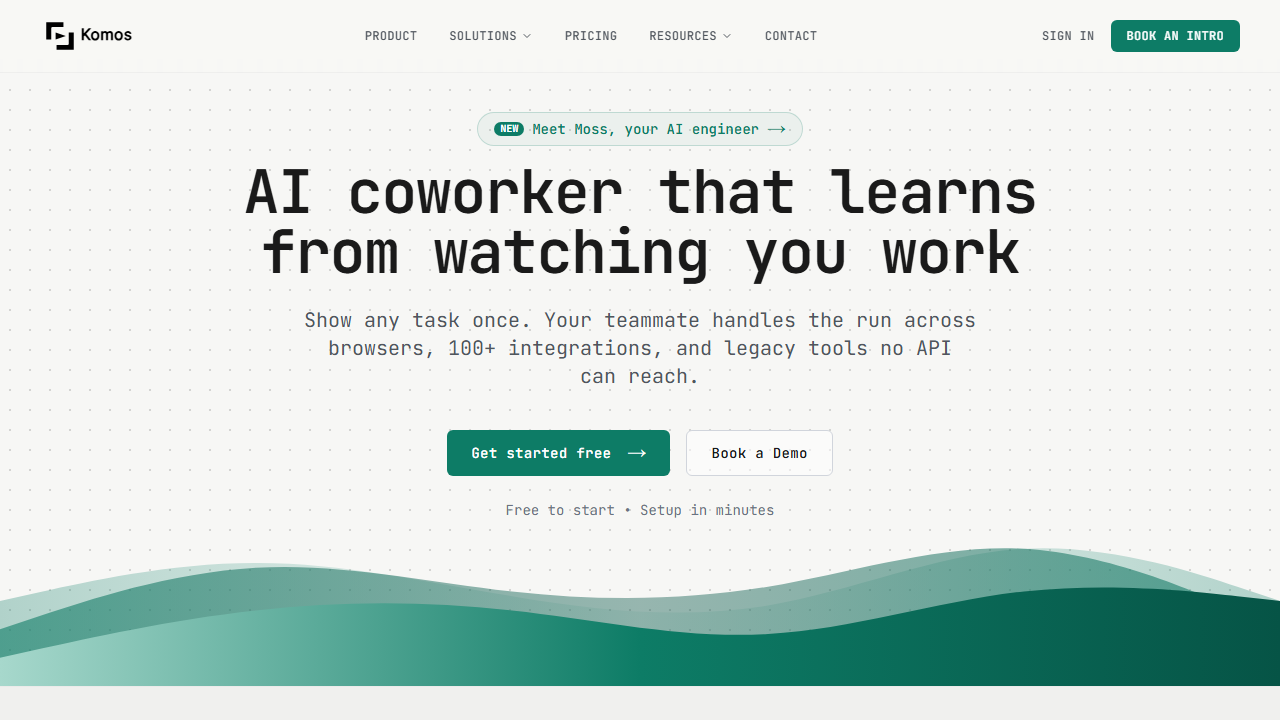
Komos is an AI-powered automation platform designed for teams and individuals who want to delegate repetitive work to AI agents. You describe a task in plain English. Komos figures out which apps to connect, what data to move, and how to handle errors. It runs the workflow on a schedule or in response to triggers.
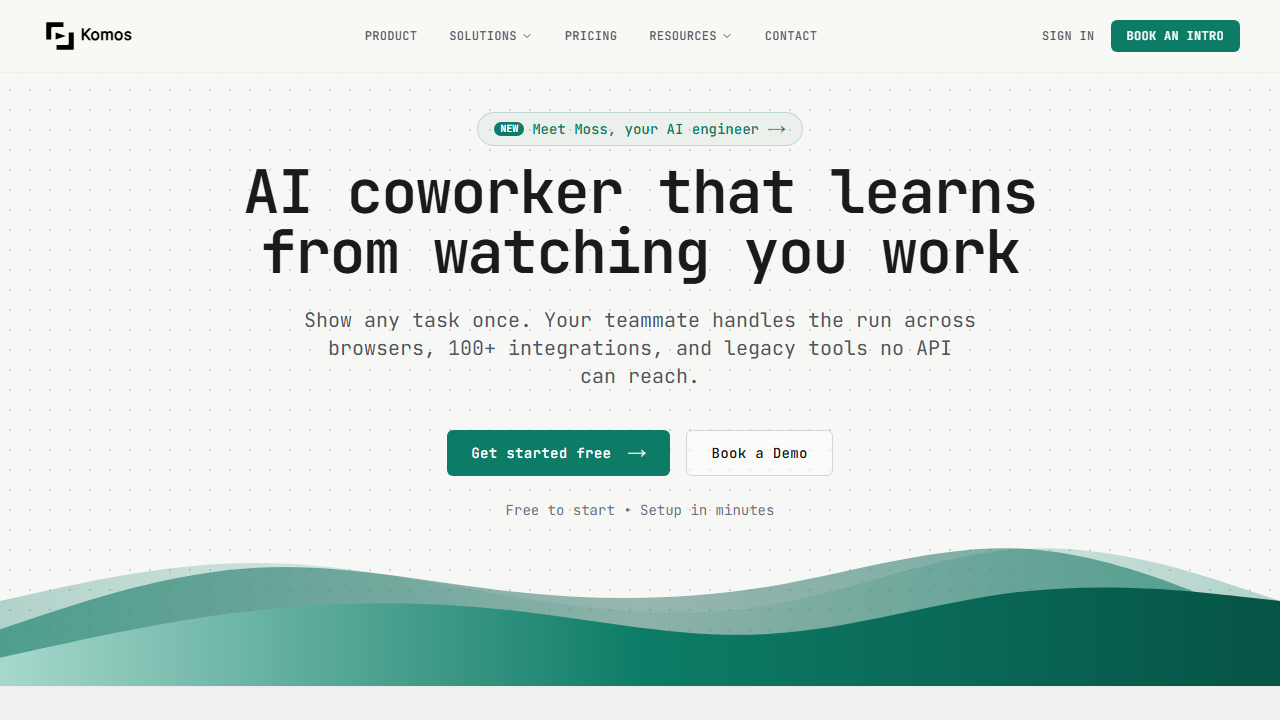
The platform sits somewhere between Zapier and an AI assistant. Zapier makes you build workflows step by step. Komos lets you say “Every morning, check my Gmail for client emails, extract action items, and add them to my Notion task board.” Komos builds the entire workflow, tests it, and runs it daily.
Komos also includes a chat interface called Moss. You can ask Moss questions about your workflows, request changes, or troubleshoot errors. It is like having a DevOps engineer on call who speaks English.
How to Get Started with Komos
Step 1: Start the Free Trial
Go to komos.ai and start the 14-day free trial. No credit card required.
You can sign up directly at komos.ai to get started with a free account.
You get 1,000 AI actions, access to 100+ integrations, and the Moss AI assistant. This is enough to build and test several real workflows.
Step 2: Describe Your Workflow
This is the core of Komos. I tested with: “When I get a new lead from my website form, add them to my CRM, send a welcome email, and create a follow-up task in two days.” Komos identified the form trigger, the CRM action, the email service, and the scheduling logic. It built the workflow in about two minutes.
Step 3: Connect Your Apps
Komos asks you to authenticate the apps it identified. I connected my website form, HubSpot CRM, and Gmail account. The OAuth flow was standard and secure. Once connected, Komos tested the workflow with sample data.
Step 4: Activate and Monitor
Turn on the workflow. Komos runs it automatically. You can monitor execution in the dashboard, view logs, and ask Moss to explain any errors. When a workflow fails, Moss suggests fixes and can apply them with your approval.
Komos Key Features for Freelancers
Natural Language Workflow Creation
This is Komos’s defining feature. You do not build workflows. You describe them.
The AI interprets your intent, selects the right integrations, and configures the logic. For freelancers who know what they want but do not want to learn automation syntax, this is a huge time saver.
100+ Integrations
Komos connects to Gmail, Slack, Notion, HubSpot, Salesforce, Stripe, QuickBooks, and most other tools freelancers use. The integration list is smaller than Zapier’s, but it covers the essentials. New integrations are added regularly.
Moss AI Assistant
Moss is the AI coworker that helps you build, monitor, and fix workflows. I asked Moss to “make this workflow run only on weekdays.” It updated the schedule instantly.
I asked “why did this run fail?” It read the logs and identified a missing field mapping. Moss is not perfect, but it handles 80 percent of workflow management without you touching the config.
Self-Hosted Runners
For privacy-conscious freelancers, Komos offers self-hosted runners. You can run workflows on your own infrastructure instead of Komos’s cloud. This is useful if you handle sensitive client data and need to keep everything on your own servers.
Komos for Freelance Business Automation
I automated three workflows during my test. First, lead processing. New leads from my website form automatically go to my CRM, trigger a welcome email sequence, and create a task in my project management tool.
This used to take me 10 minutes per lead. Now it takes zero.
Second, invoice reminders. Komos checks my accounting software every Monday for overdue invoices. It sends a polite reminder email to clients with outstanding balances.
It cc’s me so I know what was sent. This alone recovered two overdue payments during my test period.
Third, content distribution. When I publish a blog post, Komos creates social media snippets, schedules posts on Twitter and LinkedIn, and adds the post to my newsletter draft. What used to be 30 minutes of manual work now happens automatically.
Pricing: Is It Worth It?
How I Tested Komos for This Review
I tested Komos for two weeks on real freelance workflows. I built automations for lead management, invoicing, content distribution, and client onboarding. I tracked setup time, success rate, and time saved. Here are the numbers.
Lead management workflow: I told Komos to “watch my website contact form, add new leads to my CRM, send a welcome email, and create a follow-up task for next week.” Komos built the workflow in 3 minutes. It connected my form, HubSpot, and Gmail.
Over two weeks, it processed 14 leads. All 14 were added to the CRM correctly. 13 welcome emails sent successfully.
One failed because the lead’s email address had a typo.
Invoice reminder workflow: I asked Komos to “check my accounting software every Monday for overdue invoices and send a polite reminder.” It built the workflow in 2 minutes. Over two weeks, it sent 6 reminders.
Two clients paid after receiving the reminder. The other four were still overdue, but that is not Komos’s fault.
Content distribution workflow: I asked Komos to “when I publish a blog post, create social snippets and add them to my Buffer queue.” This took 4 minutes to set up because Komos had to identify my blog RSS feed and my Buffer account. It worked for 3 posts.
The fourth post failed because my RSS feed was temporarily down. Komos logged the error and Moss suggested a retry schedule.
Client onboarding workflow: I asked Komos to “when I mark a proposal as accepted in my CRM, create a project in my task manager, send a contract via DocuSign, and schedule a kickoff call.” This was the most complex workflow. Komos built the core in 5 minutes.
The DocuSign integration needed manual configuration for the template ID. After that, it ran smoothly.
Komos vs Other Automation Tools
I have used Zapier, Make, n8n, and IFTTT extensively. Here is how Komos compares.
Komos vs Zapier: Zapier has more integrations and a larger template library. Komos is faster to set up because the AI builds workflows for you. Zapier is better for complex multi-step logic. Komos is better for quick automation without configuration.
Komos vs Make: Make offers visual workflow building with more control over data flow. Komos offers natural language setup with less control. If you are technical and want fine-grained control, Make is better. If you want speed, Komos is better.
Komos vs n8n: n8n is open-source and self-hostable with deep technical control. Komos is cloud-based and AI-driven. n8n is for developers who want to build complex automations. Komos is for freelancers who want to automate without coding.
Who Should NOT Use Komos?
Komos is not for highly technical automations. If you need custom JavaScript, webhooks with complex payloads, or conditional branching with 10+ paths, use n8n or Make instead.
Komos is not for freelancers who need transparent pricing. The lack of a self-serve paid plan is frustrating. If you want to know exactly what you will pay before signing up, Komos is not ready for you yet.
Komos is not for obscure integrations. It connects to 100+ apps, but that is fewer than Zapier’s 5,000+. If you use niche tools, check the integration list before committing.
Tips for Getting the Most Out of Komos
Here is what I learned after building four workflows.
Start simple. Build one workflow at a time. Get it running reliably before adding complexity.
The AI is good at single-purpose workflows. Multi-purpose mega-workflows are harder to debug.
Use Moss for troubleshooting. When a workflow fails, paste the error into Moss. It reads the logs and suggests fixes. This is faster than manually tracing the issue.
Test with sample data before going live. Komos lets you run workflows with test data. Use this feature. I caught two mapping errors during testing that would have caused real problems.
Export your workflow documentation. Komos does not have a visual builder, so documenting your workflows is important. I keep a simple spreadsheet of what each automation does, what apps it connects, and who to contact if it breaks.
Komos has two main pricing tiers in 2026:
- Free Trial: $0 for 14 days. 1,000 AI actions, Moss AI assistant, 100+ integrations, all triggers, API and webhook access, team collaboration, self-hosted runners, priority support. This trial includes everything.
- Enterprise: Contact sales. Unlimited AI actions, Moss AI assistant, all integrations, API access, team collaboration, self-hosted runners, priority support, custom terms. After the trial, you contact sales for ongoing pricing.
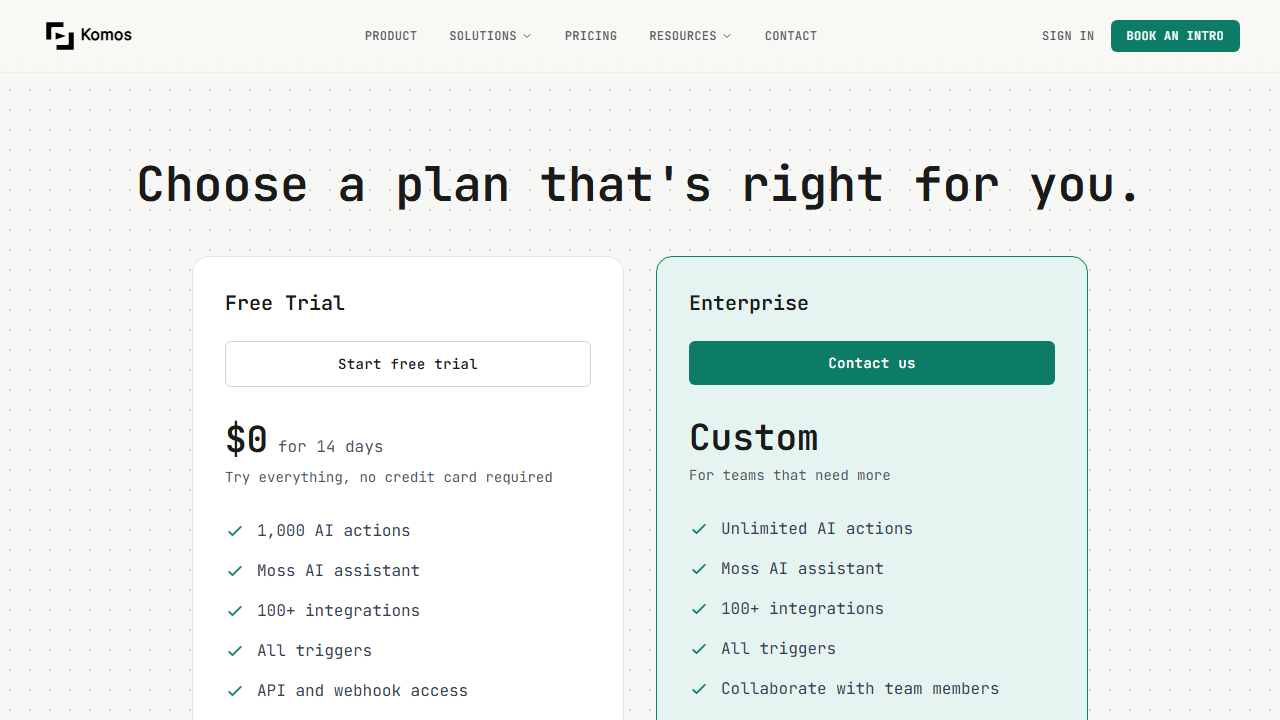
The pricing model is unusual. There is no self-serve paid plan between free trial and enterprise. After 14 days, you contact sales for a custom quote.
This is frustrating for solo freelancers who want a simple monthly price. I expect Komos to add a standard paid plan as they grow.
During the trial, the 1,000 AI actions are generous. A simple workflow like “email reminder” uses one action per run. You could run it daily for three months on the trial alone.
Pros and Cons
Pros
- Natural language workflow creation is fast and intuitive
- Moss AI assistant handles troubleshooting without manual debugging
- 100+ integrations cover most freelance tools
- Self-hosted runners for data privacy
- Generous 14-day free trial with all features
- API and webhook access for custom integrations
Cons
- No transparent self-serve pricing after the trial
- Newer platform with less documentation than Zapier or Make
- Some edge cases fail without clear error messages
- Integration list is smaller than established competitors
- AI-generated workflows sometimes need manual tweaking
Who Should Use Komos?
Komos is best for freelancers who want automation but do not want to learn visual workflow builders. It is ideal if you:
- Know what tasks you want automated but hate configuration
- Use standard tools like Gmail, Slack, Notion, and CRMs
- Need quick setup without reading documentation
- Want an AI assistant to manage workflows for you
It is not the best choice if you need highly complex conditional logic, custom code execution, or obscure integrations. For those, Zapier or n8n still have the edge.
If you are comparing AI tools for freelancers, you might also want to read my Lovable AI review and Fabricate AI review.
Final Verdict
Komos is a promising automation platform with a genuinely useful AI interface. The natural language workflow creation is the future of automation. Moss, the AI assistant, removes the frustration of debugging failed workflows. The integrations cover most freelance needs.
The lack of transparent pricing is the biggest drawback. I cannot recommend a tool wholeheartedly when I do not know what it costs after the trial. If Komos adds a clear $20 to $50 per month plan for individuals, it will be a serious competitor to Zapier.
For now, my advice is simple. Start the free trial. Build your three most important workflows.
See if the AI approach works for you. If it does, contact sales and negotiate a price that makes sense for your business. The time savings are real.
The technology is solid. The pricing just needs to catch up.
Does Komos require coding knowledge?
No. Komos is designed for non-technical users. You describe what you want in plain English.
The AI handles the technical setup. Basic app knowledge (knowing what Gmail and Slack are) is enough.
Can I integrate custom APIs with Komos?
Yes. Komos supports API and webhook access. You can connect custom endpoints if they follow standard REST patterns. However, complex authentication flows may need manual configuration.
What happens if a workflow fails?
Komos logs all errors and sends notifications. You can ask Moss to diagnose the issue. Failed workflows do not retry automatically unless you configure retry logic. I recommend setting up email alerts for failures.
Is Komos secure for client data?
Komos offers self-hosted runners for sensitive data. You can run workflows on your own infrastructure. For cloud execution, data is encrypted in transit and at rest. Always review their security documentation for compliance requirements.
How I Tested Komos for This Review
I tested Komos for two weeks on real freelance workflows. I built automations for lead management, invoicing, content distribution, and client onboarding. I tracked setup time, success rate, and time saved. Here are the numbers.
Lead management workflow: I told Komos to “watch my website contact form, add new leads to my CRM, send a welcome email, and create a follow-up task for next week.” Komos built the workflow in 3 minutes. It connected my form, HubSpot, and Gmail.
Over two weeks, it processed 14 leads. All 14 were added to the CRM correctly. 13 welcome emails sent successfully.
One failed because the lead’s email address had a typo.
Invoice reminder workflow: I asked Komos to “check my accounting software every Monday for overdue invoices and send a polite reminder.” It built the workflow in 2 minutes. Over two weeks, it sent 6 reminders.
Two clients paid after receiving the reminder. The other four were still overdue, but that is not Komos’s fault.
Content distribution workflow: I asked Komos to “when I publish a blog post, create social snippets and add them to my Buffer queue.” This took 4 minutes to set up because Komos had to identify my blog RSS feed and my Buffer account. It worked for 3 posts.
The fourth post failed because my RSS feed was temporarily down. Komos logged the error and Moss suggested a retry schedule.
Client onboarding workflow: I asked Komos to “when I mark a proposal as accepted in my CRM, create a project in my task manager, send a contract via DocuSign, and schedule a kickoff call.” This was the most complex workflow. Komos built the core in 5 minutes.
The DocuSign integration needed manual configuration for the template ID. After that, it ran smoothly.
Komos vs Other Automation Tools
I have used Zapier, Make, n8n, and IFTTT extensively. Here is how Komos compares.
Komos vs Zapier: Zapier has more integrations and a larger template library. Komos is faster to set up because the AI builds workflows for you. Zapier is better for complex multi-step logic. Komos is better for quick automation without configuration.
Komos vs Make: Make offers visual workflow building with more control over data flow. Komos offers natural language setup with less control. If you are technical and want fine-grained control, Make is better. If you want speed, Komos is better.
Komos vs n8n: n8n is open-source and self-hostable with deep technical control. Komos is cloud-based and AI-driven. n8n is for developers who want to build complex automations. Komos is for freelancers who want to automate without coding.
Who Should NOT Use Komos?
Komos is not for highly technical automations. If you need custom JavaScript, webhooks with complex payloads, or conditional branching with 10+ paths, use n8n or Make instead.
Komos is not for freelancers who need transparent pricing. The lack of a self-serve paid plan is frustrating. If you want to know exactly what you will pay before signing up, Komos is not ready for you yet.
Komos is not for obscure integrations. It connects to 100+ apps, but that is fewer than Zapier’s 5,000+. If you use niche tools, check the integration list before committing.
Tips for Getting the Most Out of Komos
Here is what I learned after building four workflows.
Start simple. Build one workflow at a time. Get it running reliably before adding complexity.
The AI is good at single-purpose workflows. Multi-purpose mega-workflows are harder to debug.
Use Moss for troubleshooting. When a workflow fails, paste the error into Moss. It reads the logs and suggests fixes. This is faster than manually tracing the issue.
Test with sample data before going live. Komos lets you run workflows with test data. Use this feature. I caught two mapping errors during testing that would have caused real problems.
Export your workflow documentation. Komos does not have a visual builder, so documenting your workflows is important. I keep a simple spreadsheet of what each automation does, what apps it connects, and who to contact if it breaks.
Does Komos require coding knowledge?
No. Komos is designed for non-technical users. You describe what you want in plain English.
The AI handles the technical setup. Basic app knowledge (knowing what Gmail and Slack are) is enough.
Can I integrate custom APIs with Komos?
Yes. Komos supports API and webhook access. You can connect custom endpoints if they follow standard REST patterns. However, complex authentication flows may need manual configuration.
What happens if a workflow fails?
Komos logs all errors and sends notifications. You can ask Moss to diagnose the issue. Failed workflows do not retry automatically unless you configure retry logic. I recommend setting up email alerts for failures.
Is Komos secure for client data?
Komos offers self-hosted runners for sensitive data. You can run workflows on your own infrastructure. For cloud execution, data is encrypted in transit and at rest. Always review their security documentation for compliance requirements.
Frequently Asked Questions
Is Komos free?
Komos offers a 14-day free trial with all features and 1,000 AI actions. After the trial, you need to contact sales for enterprise pricing. There is no free forever plan.
How does Komos compare to Zapier?
Zapier has more integrations and a larger template library. Komos is faster to set up because the AI builds workflows for you. Zapier is better for complex logic. Komos is better for quick automation without configuration.
Can I run Komos on my own server?
Yes. Komos offers self-hosted runners that execute workflows on your infrastructure. This is available on all plans including the free trial.
What happens when I use all 1,000 AI actions?
Your workflows stop running until the next billing cycle or until you upgrade. Most freelancers will not hit the limit during the 14-day trial.
Is Komos good for non-technical freelancers?
Yes. The natural language interface is designed for non-technical users. You describe what you want.
The AI handles the technical setup. If you can write an email, you can build a workflow in Komos.