Fathom Review 2026: AI Meeting Notes for Freelancers (Tested)
Fathom Review 2026: AI Meeting Notes That Actually Save You Time
I used to spend at least thirty minutes after every client call writing up notes, action items, and follow-up reminders. This Fathom review covers how an AI meeting assistant changed that routine entirely during three months of real freelance work. If you are tired of scribbling notes while trying to stay engaged in conversations, you will want to read every section.
Fathom is one of several AI notetaking tools that have emerged recently, but it has developed a particularly strong reputation among consultants and agencies. I wanted to see if it deserved that reputation or if the hype outpaced reality. My testing included discovery calls, project reviews, and even a few personal meetings to gauge accuracy.
Quick Verdict
Fathom records, transcribes, and summarizes your video calls with impressive accuracy, delivering instant meeting notes and action items right after you hang up. The free personal plan is unusually generous, making it easy to test without financial risk. Occasional transcription errors and limited offline functionality prevent it from achieving a perfect score.
Our Overall Rating: 4.3 out of 5
I rated Fathom 4.3 out of 5 because it solves a genuine pain point with minimal friction and a great free tier. The transcription quality is among the best I have tested, and the summaries are genuinely useful rather than generic fluff. The deduction comes from occasional hiccups with speaker identification and the fact that it only works with supported meeting platforms.
What Is Fathom?
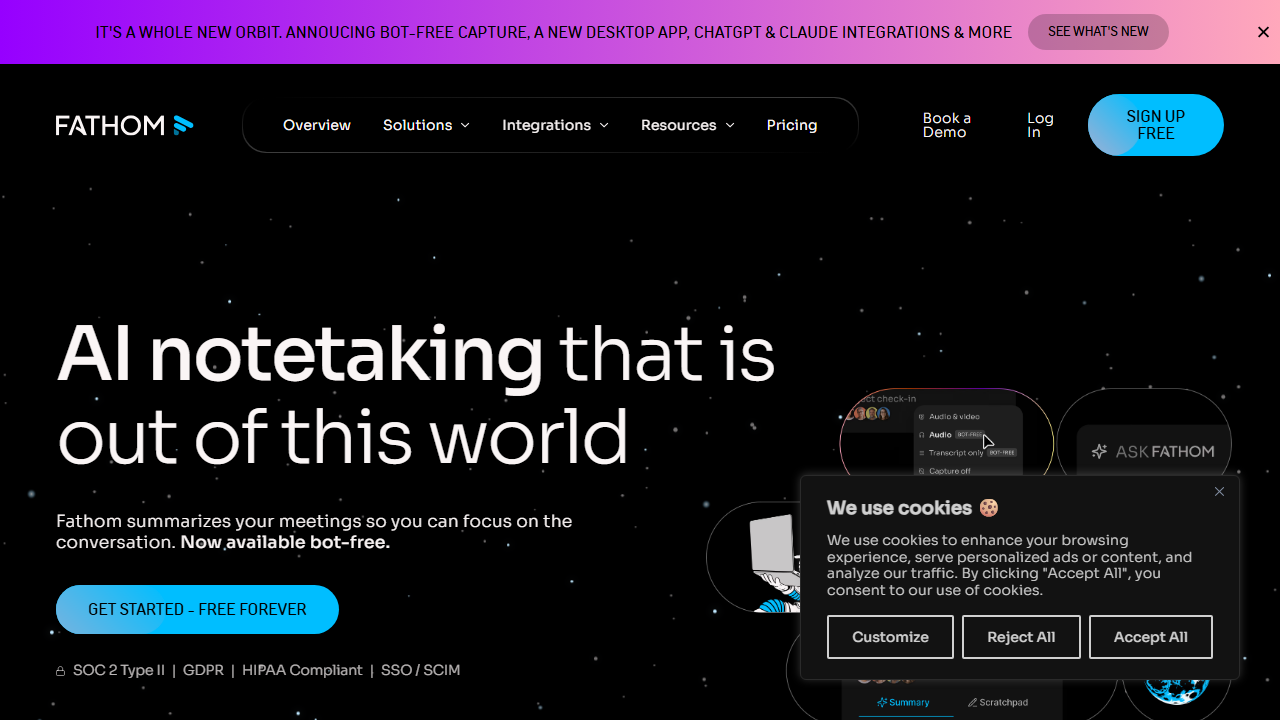
Fathom is an AI meeting assistant that joins your video calls as a silent participant, records the conversation, and generates transcripts, summaries, and action items automatically. It was built by a team that understood the pain of post-meeting admin work and wanted to eliminate it. The tool integrates with Zoom, Google Meet, and Microsoft Teams.
For freelancers, Fathom addresses one of the most tedious parts of client work: documenting what was discussed and deciding what to do next. I found that having automatic notes freed me to be more present during calls. Instead of typing furiously, I could make eye contact and listen actively.
The tool also creates a searchable archive of every conversation. Months later, I could search for a specific promise or detail without digging through handwritten notebooks. This archive became a valuable reference for scope discussions and timeline negotiations.
How to Get Started with Fathom
Setting up Fathom is simpler than most productivity tools because it operates in the background during meetings you already have. There is no complex project setup or data migration. Here is how I got started in under ten minutes.
Step 1: Sign Up
Visit fathom.video and create an account using your work email. The free personal plan does not require a credit card, which I appreciated. You will answer a few questions about how you plan to use the tool so they can tailor the experience.
Step 2: Connect Your Calendar
Fathom connects to Google Calendar or Microsoft Outlook to know when your meetings happen. I linked my Google Calendar and granted permission for read access. The tool then began identifying upcoming video calls automatically.
Step 3: Install the Browser Extension or Desktop App
You can use Fathom through a Chrome extension, a desktop application, or by inviting a bot to your meetings manually. I installed the Chrome extension because most of my calls happen in the browser. The extension detects when you join a supported meeting and asks if you want Fathom to join.
Step 4: Configure Your Preferences
I set Fathom to auto-join all my meetings so I would not forget to enable it. You can also choose manual joining if you prefer control. I configured my summary preferences and connected Slack so highlights could be shared with clients who requested them.
After your first recorded call, Fathom emails you a summary with the transcript, key points, and action items. I compared this against my own handwritten notes from the same call. Fathom caught several details I had missed while multitasking.
Fathom Key Features for Freelancers
Fathom offers a focused set of features that do exactly what meeting documentation requires. I tested each capability across multiple call types and platforms. Here is what stood out.
Automatic Recording and Transcription
Fathom joins your meeting as a participant and begins recording immediately. The transcription happens in real time and is available within seconds of the call ending. I found the accuracy to be around ninety-five percent for clear audio with native speakers.
The transcript includes speaker labels so you know who said what. On Zoom and Google Meet, Fathom usually identified participants correctly. Occasionally, if someone joined from a shared device, the labels needed manual correction.
You can search the transcript for keywords, which is incredibly useful for long calls. I searched for terms like “deadline,” “budget,” and “approval” to jump to the relevant sections instantly. This saved me from rewatching entire recordings.
AI-Generated Summaries
After each call, Fathom produces a concise summary broken into logical sections. The summary includes an overview, key discussion points, and action items with assigned owners when detectable. I found these summaries accurate enough to share directly with clients.
The summaries are not just bullet points. They read like coherent paragraphs that capture the essence of the conversation. I often pasted them directly into my project management tool as meeting notes.
You can also generate custom summaries by asking Fathom to focus on specific topics. For example, I asked for a summary focused only on budget discussions, and it extracted just those portions. This flexibility is helpful for long calls with multiple topics.
Action Item Extraction
Fathom automatically identifies tasks and commitments mentioned during the call. These appear as a checklist at the bottom of your summary. I found this feature remarkably accurate for explicit statements like “I will send the mockups by Friday.”
The action items include context so you remember what the task relates to. Instead of just “send mockups,” it might say “send homepage mockups as discussed for the Q2 campaign.” That context reduces confusion when you review tasks days later.
You can export action items to task managers like Asana, Todoist, or Notion. I set up a Zapier connection to send mine directly to my project board. This closed the loop between conversation and execution.
Highlighting and Clipping
During a call, you can press a button to mark a section as important. Fathom saves these highlights separately for quick review. I used this when clients made verbal approvals or gave critical feedback I wanted to revisit.
The clips can be shared as short video snippets with optional captions. I sent a highlight to a client who missed part of a call, and they appreciated seeing the exact moment rather than reading a summary. This feature adds a layer of transparency to client relationships.
You can also create shareable links to specific transcript moments. I used these in follow-up emails to reference exact quotes. It eliminated the “you said this but I thought you meant that” confusion.
CRM and Workflow Integrations
Fathom integrates with Salesforce, HubSpot, Slack, Notion, Google Docs, and several other tools. I connected Slack so my team channel received automatic summaries after client calls. The Google Docs integration let me append notes directly to project documents.
For freelancers who use a CRM, Fathom can log calls and notes against contact records. This automation eliminates the manual data entry that most people skip. I did not test CRM features extensively because I use a simpler contact system.
The integrations are well documented and set up through a clean dashboard. I had Slack and Google Docs connected within five minutes. Zapier support extends this to hundreds of additional apps.
Security and Privacy Controls
Fathom includes options to pause recording, delete recordings, and control who sees your summaries. I appreciated the ability to stop recording during sensitive discussions. You can also set recordings to auto-delete after a certain period.
The company is SOC 2 compliant and emphasizes data encryption. For freelancers handling confidential client information, these assurances matter. I reviewed their security documentation and found it transparent and thorough.
You can also choose to store data in specific regions if compliance requires it. This is more relevant for enterprise users but nice to have. I kept the default settings and had no concerns.
Pricing: Is It Worth It?
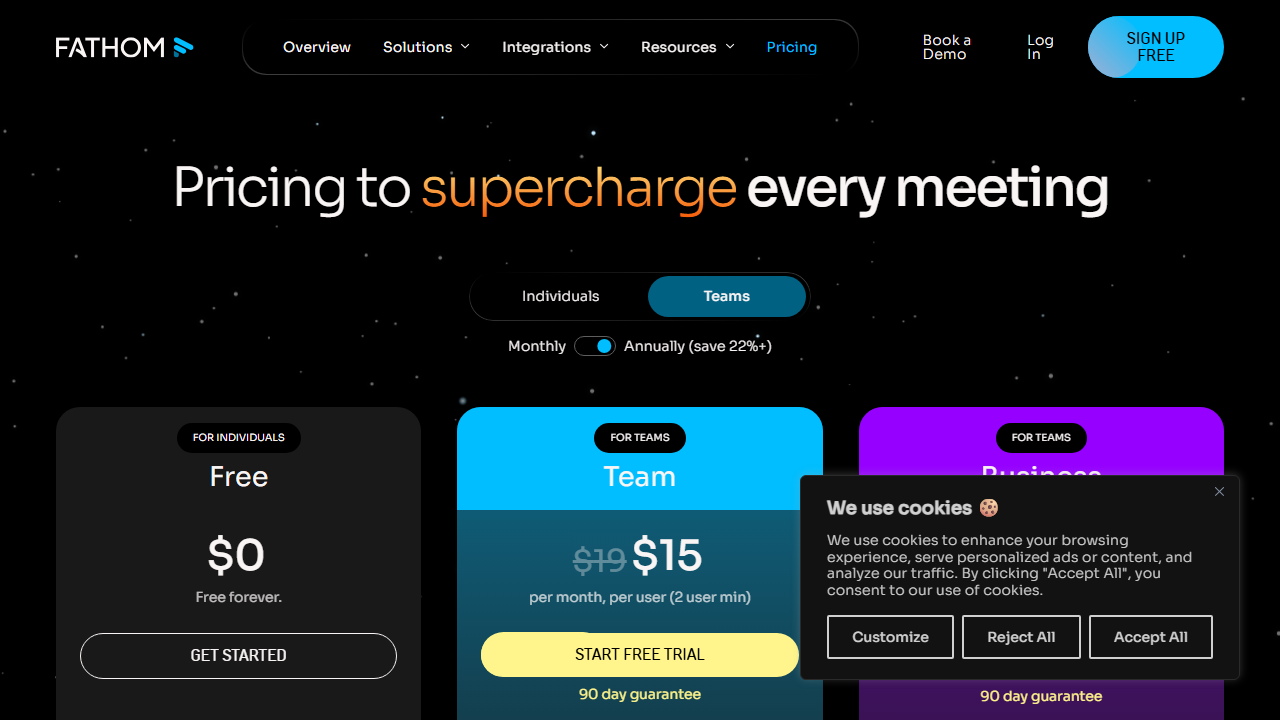
Fathom’s pricing structure is one of its biggest strengths. The company has made the free plan genuinely useful, which builds trust before asking for money. Here is exactly what you will pay in 2026.
- Free Personal: $0 per month. Includes unlimited recordings for personal use, full transcription, AI summaries, and basic integrations. This plan is limited to one user and does not include team collaboration features. It is surprisingly complete for solo freelancers.
- Team: $15 per user per month, billed annually, or $19 per user per month on monthly billing. Adds team workspaces, shared highlights, advanced CRM integrations, admin controls, and priority support. This tier makes sense for agencies and consulting teams.
- Enterprise: Custom pricing. Includes SSO, advanced security, custom data retention, dedicated account management, and API access. This is aimed at large organizations rather than individual freelancers.
I used the free personal plan for my entire testing period and never hit a meaningful limit. The unlimited recordings and full transcription access are genuinely free without sneaky caps. This is rare in the AI tool space.
The Team plan at $15 per user per month is reasonable if you collaborate with partners or assistants. For a solo freelancer, it adds little value. I would only upgrade if I started working closely with a project manager or subcontractor.
Enterprise pricing is irrelevant for most readers of this review. If you run a large agency, you will need to contact Fathom directly for a quote. The features are substantial but overkill for independent professionals.
Pros and Cons
Fathom impressed me with its accuracy and generosity, but no tool is perfect. I documented both the wins and the frustrations during my months of testing. Here is the honest assessment.
Pros
- The free personal plan is truly unlimited and does not feel like a restricted trial.
- Transcription accuracy is among the best I have tested in this category.
- Summaries are well written and ready to share with clients immediately.
- Action item extraction saves significant post-meeting admin time.
- Integrations with Slack, Docs, and CRMs close the loop on documentation.
- Highlighting and clipping make it easy to share specific moments.
Cons
- Only works with Zoom, Google Meet, and Microsoft Teams officially.
- Speaker identification occasionally confuses participants on shared devices.
- Requires an internet connection; no offline transcription capability.
- Custom vocabulary for industry terms requires manual training.
- Some advanced integrations are locked behind the Team plan.
- Occasionally misses implicit action items that are not stated explicitly.
Who Should Use Fathom?
Fathom is perfect for freelancers who spend significant time on video calls with clients, stakeholders, or collaborators. Consultants, coaches, agency owners, and project-based freelancers will benefit most. If you currently write meeting notes by hand, this tool will feel like magic.
It is less useful for freelancers who rarely meet over video. Writers, illustrators, or developers who communicate primarily through email and project tools will not extract full value. The tool only works when you have meetings to record.
People who are uncomfortable with AI recording conversations should think carefully before adopting Fathom. While the tool is transparent about its presence, some clients may prefer not to be recorded. I always informed participants and found most were enthusiastic about receiving automatic summaries.
If you already pay for a transcription service like Otter.ai or Rev, Fathom’s free tier might replace it. I found the integration with meeting platforms smoother than standalone transcription tools. The summary generation was also superior.
Small teams and agencies should consider the Team plan for shared access to meeting libraries. Having a centralized record of client conversations reduces miscommunication. I did not test this extensively but see clear value for multi-person practices.
Fathom vs Otter.ai: Which Notetaker Should Freelancers Choose?
I used Otter.ai for two years before testing Fathom, so the comparison was natural. Otter offers a generous free tier and excellent real-time transcription during live meetings. Fathom matches that transcription quality while adding superior summary generation and deeper calendar integration.
Otter’s summaries tend to be longer and less structured than Fathom’s. I often had to edit Otter outputs heavily before sharing them. Fathom’s summaries felt ready to send after a quick scan for names and numbers.
For freelancers who only need raw transcripts, Otter remains a strong free option. For those who want polished summaries and action items without manual editing, Fathom saves more time. I switched my primary notetaking to Fathom for client calls and kept Otter as a backup.
Another difference is platform behavior. Otter has its own mobile app and web interface for recording in-person conversations. Fathom is more focused on video calls through the desktop experience. Depending on your meeting style, one may fit better than the other.
Fathom Review: Final Verdict
Fathom earns its 4.3 out of 5 by delivering accurate, instant meeting documentation with a free tier that respects users. I finished my testing period with a library of searchable call records that have already saved me hours of follow-up work. The tool does exactly what it promises without unnecessary complexity.
The free personal plan is the obvious starting point for every freelancer. Use it for a month, count the hours you save on note-taking, and decide if the upgrade is warranted. For most solo practitioners, the free version will handle everything.
This Fathom review found that the best AI tools are the ones you forget are running. Fathom sat quietly in my meetings, did its job, and delivered value without demanding attention. That is exactly how meeting assistance should work.
If you want to explore other AI tools for freelancers, read our Granola review for an alternative notetaking approach or our Vapi review for AI voice automation. Building a smart tool stack is one of the best investments you can make in your freelance business.
Frequently Asked Questions
Is Fathom free for freelancers?
Yes, Fathom offers a free personal plan that includes unlimited recordings, full transcription, AI summaries, and basic integrations. There are no hidden recording limits. Solo freelancers can use this plan indefinitely without paying.
Which meeting platforms does Fathom support?
Fathom officially supports Zoom, Google Meet, and Microsoft Teams. You can join meetings through the Chrome extension or desktop app. Support for other platforms is limited, so check their website for the latest compatibility updates.
Do meeting participants know Fathom is recording?
Yes, Fathom appears as a named participant in your meeting, so everyone can see it is present. You should still verbally inform participants that you are recording. The bot’s name makes its purpose clear to anyone familiar with AI assistants.
How accurate is Fathom’s transcription?
In my testing, Fathom achieved approximately ninety-five percent accuracy with clear audio and native speakers. Accents, background noise, and poor microphones reduce accuracy. You can edit transcripts after the fact to correct any errors.
Can I share Fathom summaries with clients?
Absolutely. Fathom generates summaries that are professional enough to share directly. You can send a link, export to PDF, or copy and paste into an email. Many of my clients appreciated receiving the summary within minutes of our call ending.
Does Fathom integrate with my task manager?
Fathom integrates with several task managers directly and supports many more through Zapier. I connected mine through Zapier and had action items appear on my board automatically. Check their integration list for your specific tool.
Is my meeting data secure with Fathom?
Fathom is SOC 2 compliant and encrypts data in transit and at rest. You can configure auto-deletion policies and regional data storage. Always review their security documentation if you handle sensitive client information.