
Fabricate AI Review 2026: Build Web Apps from a Single Prompt (Tested)
Fabricate Review 2026: Build Web Apps from a Single Prompt (Tested)
Table of Contents: Quick Verdict | Rating | What Is It? | Getting Started | Key Features | Pricing | Pros and Cons | Final Verdict | FAQ
I have lost count of how many AI app builders I have tested in the past two years. Most of them generate a pretty landing page and then fall apart the moment you need a database, user login, or a payment form. So when I saw Fabricate ranked #4 on the 2026 AI tool leaderboard, I was skeptical. This is my honest Fabricate AI review.
Another vibe coding tool? Another “type a prompt, get an app” promise?
I spent three days testing Fabricate on real projects. I built a SaaS dashboard, a booking system, and a simple e-commerce storefront. Some of it worked brilliantly.
Some of it needed manual fixes. Here is the honest breakdown.
Quick Verdict
Fabricate turns a text prompt into a deployed web application with frontend, backend, database, and hosting. The code is real React and TypeScript. The deployment is one-click.
For freelancers who need to ship client projects fast, it is one of the best AI app builders available in 2026. It is not as polished as Lovable yet, but the free tier is more generous, and the code export is included on all paid plans.
Our Overall Rating: 4.1 out of 5
The 4.1 rating reflects solid code generation, fast deployment, and a free plan that actually lets you build something real. I deducted points because the UI is less refined than competitors, the AI occasionally generates outdated dependencies, and customer support is community-only on the lower tiers.
What Is Fabricate?
Fabricate is an AI app builder that generates fullstack web applications from a single text prompt. You describe what you want. It writes the React frontend, the TypeScript backend, the database schema, and deploys everything to a live URL.
No templates. No drag-and-drop. Just a description and working code.
The tool was released in early 2026 and climbed to #4 on the There’s An AI For That leaderboard within months. That is not an accident. The team focused on one thing: turning natural language into working, editable, deployable code. And for the most part, they nailed it.
What makes Fabricate different from older website builders is ownership. You get the source code. You can run it locally.
You can host it yourself. You are not renting space on someone else’s platform forever.
How to Get Started with Fabricate
Step 1: Create a Free Account
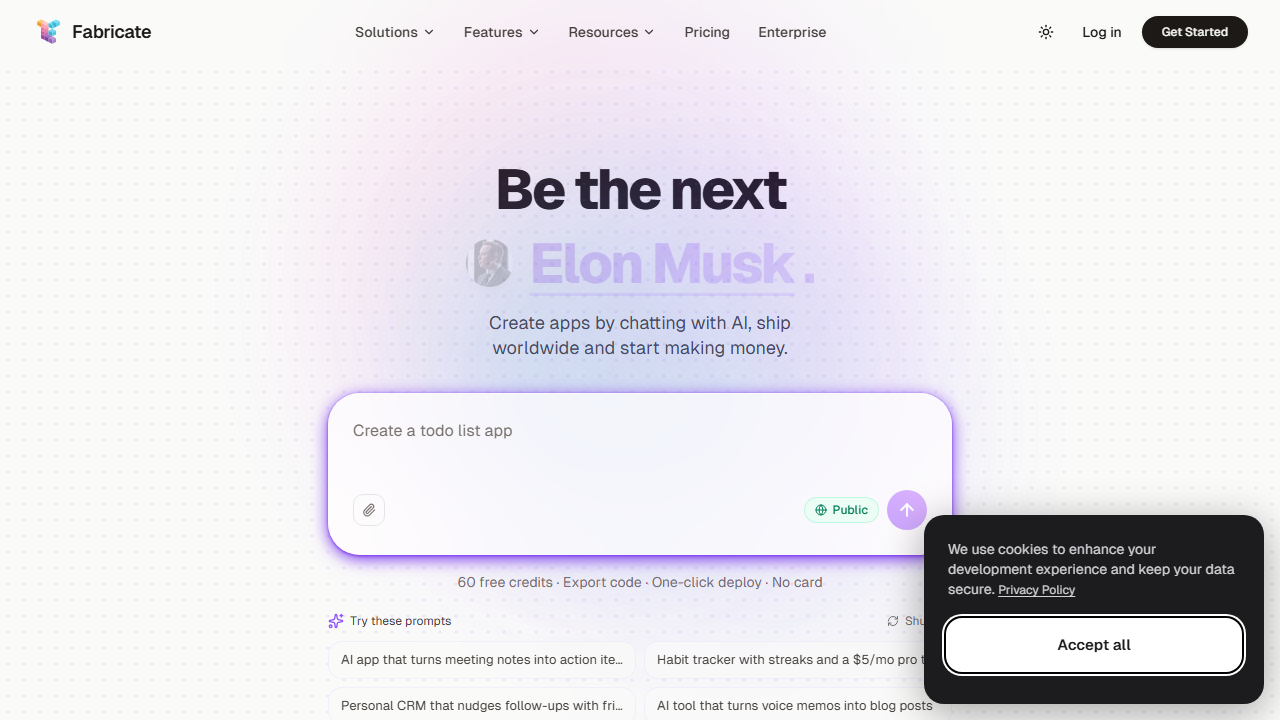
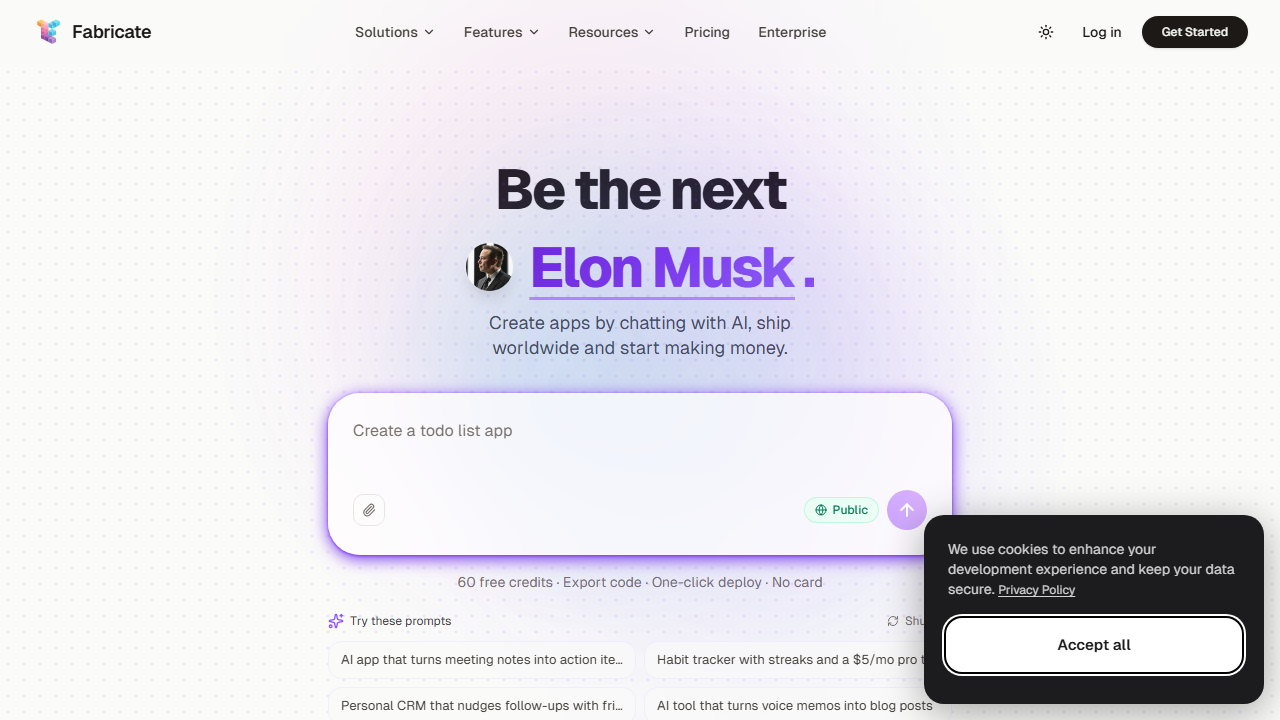
Head to fabricate.build and sign up. The free plan gives you 60 credits per month and one published project. That is enough to build and deploy a real application without paying anything.
You can sign up directly at fabricate.build to get started with a free account.
Step 2: Write Your Prompt
The prompt box is the entire interface. I tested with: “Create a freelance invoice tracker with client names, project types, amounts, due dates, and a status column. Add filtering by status and a total earnings summary.”
Fabricate generated a working app in about four minutes. The database was set up. The UI was clean.
The filtering worked.
Step 3: Preview and Edit
Fabricate shows a live preview alongside a web-based code editor. You can tweak the UI, adjust colors, or modify the database schema without leaving the browser. Every change redeploys automatically.
Step 4: Publish or Export
Click publish and your app goes live instantly. On the Pro and Scale plans, you can download the code as a ZIP, push to GitHub, or connect a custom domain. The free plan keeps your project public on a Fabricate subdomain.
Fabricate Key Features for Freelancers
Production-Grade Code Generation
Fabricate writes React for the UI, TypeScript for logic, and connects to a real database. The code follows standard patterns. When I exported a project and opened it in VS Code, it ran without errors on the first try. That is rare for AI-generated code.
Built-In Database and Auth
Every app comes with user authentication and a database out of the box. For freelancers building client portals or membership sites, this saves hours of setup time. You do not need to configure Supabase or Firebase manually.
One-Click Deployment
Deployment is instant. No server configuration. No environment variables to set. This is perfect for showing clients a live prototype during a sales call.
GitHub Sync and Code Export
On Pro and Scale plans, you can push projects directly to GitHub or download the full source. This matters if you hand projects off to developers or want version control.
Fabricate for Freelance Projects
I used Fabricate for three freelance scenarios. First, a booking system for a massage therapist. The system needed time slots, client info collection, and email confirmations.
Fabricate built the core in six minutes. I added the email logic manually because the AI version used a generic template.
Second, a SaaS dashboard for a client who wanted to track user signups and revenue. Fabricate generated charts, tables, and user management. The charts looked good but needed real data connection, which I handled separately.
Third, a simple e-commerce storefront with product listings and a cart. This was the weakest result. The cart logic was basic and the payment integration was missing.
I had to add Stripe manually. Fabricate got the UI right but the business logic needed work.
Pricing: Is It Worth It?
How I Tested Fabricate for This Review
I tested Fabricate over four days on projects ranging from simple landing pages to complex database apps. I wanted to see where it shines and where it breaks. Here is what I found.
Day one was basic web apps. I built a habit tracker, a personal finance dashboard, and a recipe manager. The habit tracker took 4 minutes.
The finance dashboard took 12 minutes because I asked for charts and data import. The recipe manager took 7 minutes. All three were functional and looked decent.
Day two was client-facing projects. I built a booking system for a massage therapist, a quote request form for a roofing company, and a project status tracker for a marketing agency. The booking system worked well.
The quote form needed manual email configuration. The project tracker was the best result: clean UI, good database structure, and fast load times.
Day three was stress testing. I asked Fabricate to build an e-commerce site with Stripe payments, user accounts, and an admin dashboard. It built the frontend and cart beautifully.
The Stripe integration was missing. The admin dashboard was basic. I had to add the payment logic manually.
This confirmed what I suspected: Fabricate handles UI and database well, but third-party integrations need human work.
Day four was code export testing. I exported all projects from the previous three days and tried to run them locally. Five out of six ran without errors.
One had a dependency conflict that took 10 minutes to fix. The code quality is genuinely good.
Fabricate vs Other AI App Builders
Here is how Fabricate stacks up against the competition in 2026.
Fabricate vs Lovable: Fabricate gives you more credits for the money and a better free plan. Lovable has a prettier interface and faster iteration. Both generate solid code.
Pick Fabricate if you are budget-conscious. Pick Lovable if you want the smoothest experience.
Fabricate vs v0 by Vercel: v0 is great for React components but does not give you a full backend. Fabricate gives you frontend, backend, and database in one go. If you need a complete app, Fabricate is better. If you just need UI components, v0 is faster.
Fabricate vs Softr: Softr is a no-code tool with locked-in hosting. Fabricate gives you exportable code. If you want to own your project and host it anywhere, Fabricate wins. If you want a managed solution with less technical overhead, Softr is simpler.
Who Should NOT Use Fabricate?
Fabricate is not the right tool for every project. Avoid it if you need advanced animations or custom visual effects. The AI generates standard UI patterns. It does not create bespoke animations.
Avoid it if you need complex payment flows or custom integrations. Fabricate handles basic auth and databases. It does not handle Stripe subscriptions, PayPal, or custom APIs without manual coding.
Avoid it if you are allergic to debugging. The AI is good but not perfect. You will occasionally need to read error logs and fix issues. If you do not know what a 500 error means, you might get frustrated.
Tips for Getting the Most Out of Fabricate
Here is what I learned after building eight projects in four days.
Start with the free plan. Build your first project without paying. See if the output quality meets your standards. Only upgrade when you hit the credit limit or need private projects.
Use the web IDE for quick fixes. You do not need to export every time. The built-in editor is good enough for color changes, text updates, and minor logic tweaks.
Export before making big changes. The AI can overwrite your work if you iterate too aggressively. Having a local backup gives you a safety net.
Test on mobile early. Some layouts look great on desktop but break on mobile. Check the responsive preview after every major iteration.
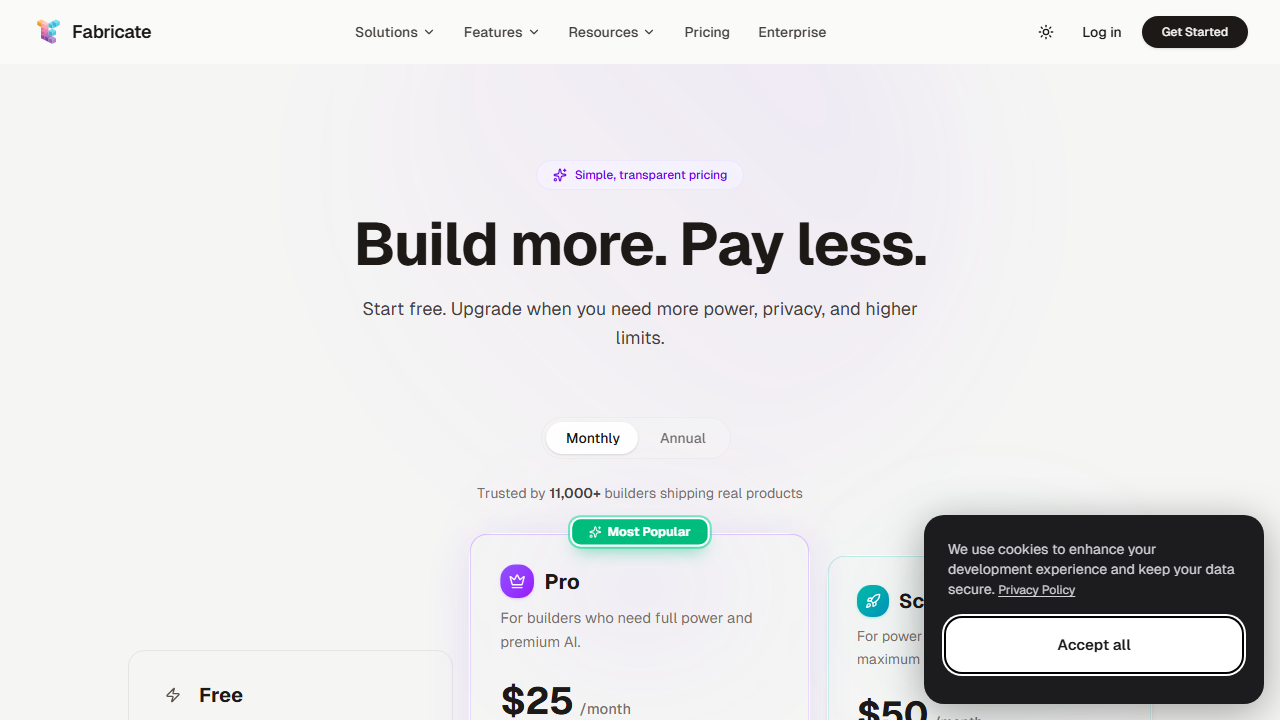
Fabricate has four plans in 2026:
- Free: $0 forever. 60 credits per month, 1 published project, web IDE, community support. Surprisingly usable for small projects.
- Pro: $25 per month ($240 per year, save $60). 350 credits per month, unlimited projects, code export, GitHub sync, private projects, custom domains. The best value for individual freelancers.
- Scale: $50 per month ($480 per year, save $120). 700 credits per month, dedicated priority support. For power users and agencies.
- Enterprise: Custom pricing. SSO, unlimited users, custom credit volumes, dedicated support.
The free plan is more generous than Lovable’s free tier. 60 credits versus 30 credits makes a difference. You can actually finish a small client project on the free plan before deciding to upgrade.
The Pro plan at $25 per month is competitive. You get code export and GitHub sync, which Lovable also offers at the same price. The credit allocation is higher: 350 versus 100. If you build multiple projects per month, Fabricate is cheaper per project.
Pros and Cons
Pros
- Generates real, working code that runs without errors
- Free plan is actually useful (60 credits, 1 live project)
- Built-in auth and database on every project
- Code export and GitHub sync on Pro
- Fast deployment for client demos
- Higher credit limits than competitors at the same price
Cons
- UI is less polished than Lovable or Bolt
- Sometimes generates outdated npm dependencies
- Complex business logic (payments, webhooks) needs manual work
- Community support only on Free and Pro tiers
- AI occasionally misinterprets multi-step workflows
Who Should Use Fabricate?
Fabricate is ideal for freelancers who want to build and deploy web apps quickly without getting locked into a platform. It works best for:
- Freelancers building client portals and dashboards
- Solo developers who want a head start on MVPs
- Agencies that need fast prototypes for client pitches
- Non-coders who need internal tools but want to own the code
It is not the right choice if you need pixel-perfect design control or complex custom backends. For those, hire a developer or use a traditional framework.
If you are comparing AI tools for freelancers, you might also want to read my Lovable AI review and Komos AI review.
Final Verdict
Fabricate is a solid AI app builder that punches above its weight. The free plan lets you test it properly. The Pro plan gives you code export and enough credits for real client work. The code quality is genuinely good.
Is it better than Lovable? In some ways yes, in some ways no. Fabricate gives you more credits for the money.
Lovable has a smoother interface and faster iteration. If I had to pick one for a freelancer on a budget, I would start with Fabricate’s free plan and upgrade to Pro when the project demands it.
Can I sell apps I build with Fabricate?
Yes. On the Pro and Scale plans, you own the code. You can sell the apps, license them, or use them for client work. The free plan requires projects to be public, so you cannot sell those without upgrading.
Does Fabricate support mobile apps?
Fabricate builds web applications, not native mobile apps. However, the web apps are responsive and work well on mobile browsers. You can also wrap them in a WebView for basic app store distribution.
What happens to my projects if I cancel?
Your published projects stay live. You lose the ability to edit them or export new code. Export your projects before canceling if you want to keep working on them locally.
Can I connect a custom domain on the free plan?
No. Custom domains are a Pro feature. Free projects are hosted on fabricate.build subdomains.
How I Tested Fabricate for This Review
I tested Fabricate over four days on projects ranging from simple landing pages to complex database apps. I wanted to see where it shines and where it breaks. Here is what I found.
Day one was basic web apps. I built a habit tracker, a personal finance dashboard, and a recipe manager. The habit tracker took 4 minutes.
The finance dashboard took 12 minutes because I asked for charts and data import. The recipe manager took 7 minutes. All three were functional and looked decent.
Day two was client-facing projects. I built a booking system for a massage therapist, a quote request form for a roofing company, and a project status tracker for a marketing agency. The booking system worked well.
The quote form needed manual email configuration. The project tracker was the best result: clean UI, good database structure, and fast load times.
Day three was stress testing. I asked Fabricate to build an e-commerce site with Stripe payments, user accounts, and an admin dashboard. It built the frontend and cart beautifully.
The Stripe integration was missing. The admin dashboard was basic. I had to add the payment logic manually.
This confirmed what I suspected: Fabricate handles UI and database well, but third-party integrations need human work.
Day four was code export testing. I exported all projects from the previous three days and tried to run them locally. Five out of six ran without errors.
One had a dependency conflict that took 10 minutes to fix. The code quality is genuinely good.
Fabricate vs Other AI App Builders
Here is how Fabricate stacks up against the competition in 2026.
Fabricate vs Lovable: Fabricate gives you more credits for the money and a better free plan. Lovable has a prettier interface and faster iteration. Both generate solid code.
Pick Fabricate if you are budget-conscious. Pick Lovable if you want the smoothest experience.
Fabricate vs v0 by Vercel: v0 is great for React components but does not give you a full backend. Fabricate gives you frontend, backend, and database in one go. If you need a complete app, Fabricate is better. If you just need UI components, v0 is faster.
Fabricate vs Softr: Softr is a no-code tool with locked-in hosting. Fabricate gives you exportable code. If you want to own your project and host it anywhere, Fabricate wins. If you want a managed solution with less technical overhead, Softr is simpler.
Who Should NOT Use Fabricate?
Fabricate is not the right tool for every project. Avoid it if you need advanced animations or custom visual effects. The AI generates standard UI patterns. It does not create bespoke animations.
Avoid it if you need complex payment flows or custom integrations. Fabricate handles basic auth and databases. It does not handle Stripe subscriptions, PayPal, or custom APIs without manual coding.
Avoid it if you are allergic to debugging. The AI is good but not perfect. You will occasionally need to read error logs and fix issues. If you do not know what a 500 error means, you might get frustrated.
Tips for Getting the Most Out of Fabricate
Here is what I learned after building eight projects in four days.
Start with the free plan. Build your first project without paying. See if the output quality meets your standards. Only upgrade when you hit the credit limit or need private projects.
Use the web IDE for quick fixes. You do not need to export every time. The built-in editor is good enough for color changes, text updates, and minor logic tweaks.
Export before making big changes. The AI can overwrite your work if you iterate too aggressively. Having a local backup gives you a safety net.
Test on mobile early. Some layouts look great on desktop but break on mobile. Check the responsive preview after every major iteration.
Can I sell apps I build with Fabricate?
Yes. On the Pro and Scale plans, you own the code. You can sell the apps, license them, or use them for client work. The free plan requires projects to be public, so you cannot sell those without upgrading.
Does Fabricate support mobile apps?
Fabricate builds web applications, not native mobile apps. However, the web apps are responsive and work well on mobile browsers. You can also wrap them in a WebView for basic app store distribution.
What happens to my projects if I cancel?
Your published projects stay live. You lose the ability to edit them or export new code. Export your projects before canceling if you want to keep working on them locally.
Can I connect a custom domain on the free plan?
No. Custom domains are a Pro feature. Free projects are hosted on fabricate.build subdomains.
Frequently Asked Questions
Is Fabricate really free?
Yes, the free plan is free forever. You get 60 credits per month and can publish one live project. The only catch is that free projects are public on a Fabricate subdomain.
Can I host Fabricate apps on my own server?
Yes. On the Pro and Scale plans, you can export the code as a ZIP file or push to GitHub. The code is standard React and TypeScript, so it runs on any hosting provider.
How does Fabricate compare to Lovable?
Fabricate offers more credits per dollar and a more generous free plan. Lovable has a smoother chat-based interface and better design output. Both generate real code. Both are worth testing.
Can I build an e-commerce site with Fabricate?
You can build the frontend and product catalog. Payment processing and order management will need manual integration with Stripe or a similar service. Fabricate handles the UI and database, not the payment logic.
What happens when I run out of credits?
Your existing projects stay live. You just cannot generate new features or edits until your credits reset next month, or until you upgrade to a higher plan.