
Cursor AI Review 2026: Is This Code Editor Worth $20/Month?
Cursor Review 2026: Is This AI Code Editor Worth $20/Month?
Table of Contents: Quick Verdict | Rating | What Is It? | Getting Started | Key Features | Pricing | Pros and Cons | Final Verdict | FAQ
I have been writing code for over a decade. I have used VS Code, Sublime Text, JetBrains, and every flavor of Vim. So when developers on Hacker News started calling Cursor “the only editor that matters,” I had to test it properly. This is my honest Cursor AI review.
Not just open it and play around. I used it for two weeks on real client projects.
Here is what I learned. Cursor is not just VS Code with AI sprinkled on top. It is a fundamentally different way of writing code. Whether that difference is worth $20 per month depends on what kind of freelancer you are.
Quick Verdict
Cursor is an AI-first code editor built on top of VS Code. It features AI agents that can write, debug, and refactor entire files based on natural language commands. For freelancers who write code regularly, it is one of the best investments you can make in 2026. For non-coders, it is overkill.
Our Overall Rating: 4.5 out of 5
The 4.5 rating is the highest I have given an AI coding tool. Cursor saves me hours every week.
The agent feature writes boilerplate I used to type manually. The tab completion predicts what I want before I finish thinking. The bug detection catches errors I would have missed.
The only reason it is not a 5 is the price. At $20 per month for the Individual plan, it adds up for freelancers on tight budgets.
What Is Cursor?
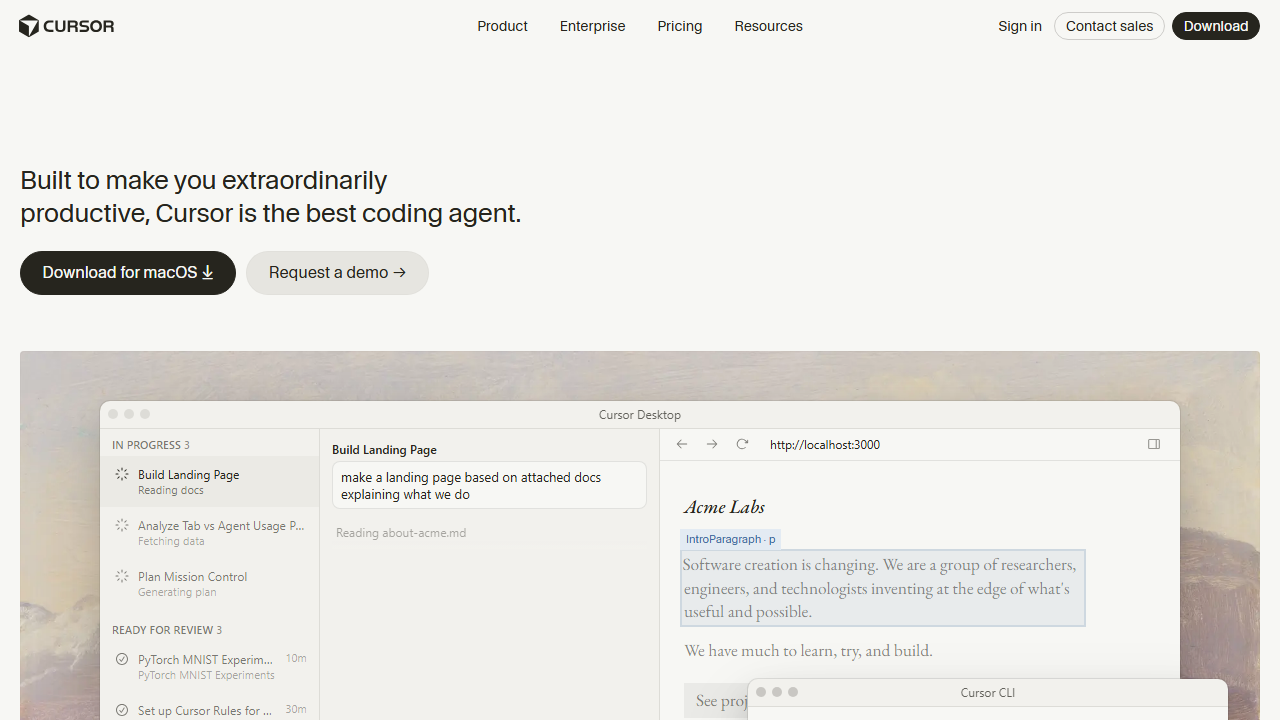
Cursor is a code editor. It looks like VS Code because it is built on the same open-source foundation. But under the hood, it is designed around AI assistance. Every feature, from autocompletion to debugging, is powered by large language models.
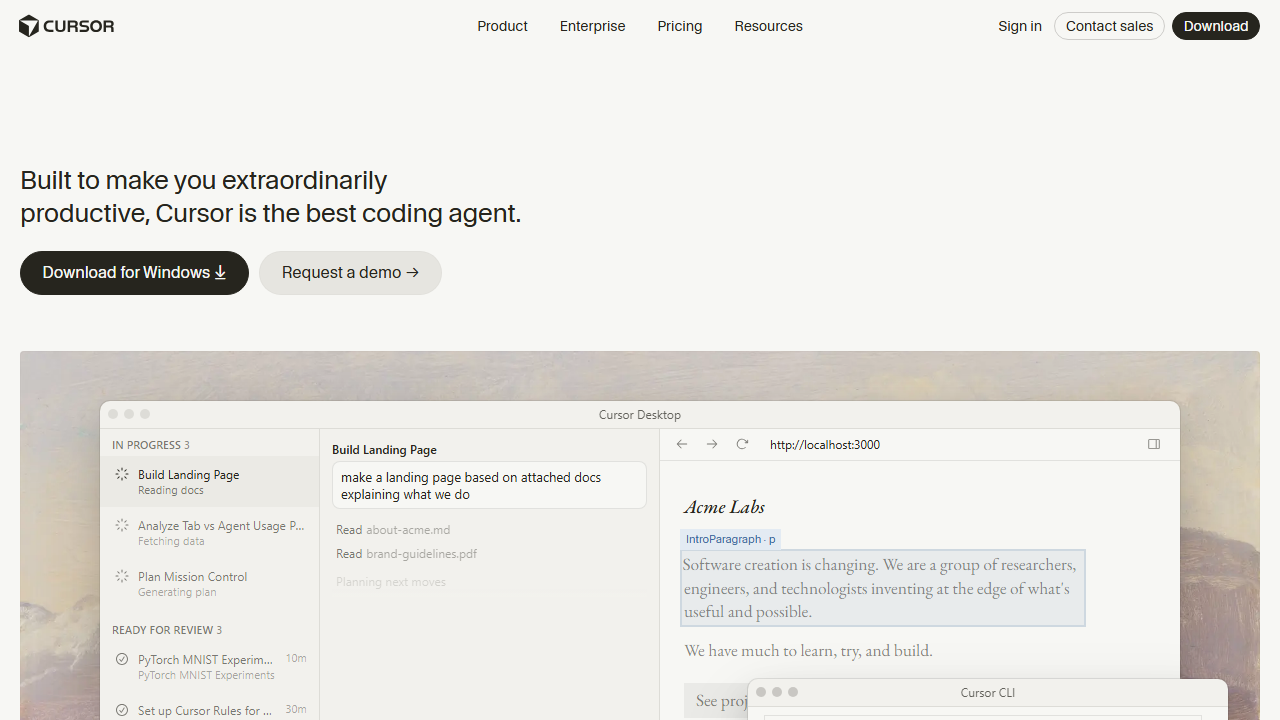
The key features are threefold. First, Tab Completion. Cursor predicts entire lines or blocks of code as you type.
It is not just finishing a variable name. It is writing full functions based on context.
Second, the Agent. You can give Cursor natural language instructions like “Refactor this authentication middleware to use JWT tokens” or “Build a React component that fetches user data and handles loading states.” The agent reads your entire codebase, makes the changes, and shows you a diff before applying.
Third, Code Review. Cursor can review your pull requests, suggest improvements, and catch security issues. This is the feature that replaced my manual code review workflow for solo projects.
How to Get Started with Cursor
Step 1: Download and Install
Cursor is available for macOS, Windows, and Linux. Download it from cursor.com.
You can sign up directly at cursor.com to get started with a free account.
The installer is lightweight and migration from VS Code is instant. It imports your themes, extensions, and keybindings automatically.
Step 2: Open a Project
Open any existing project. Cursor indexes the entire codebase in seconds. This indexing is what makes the AI context-aware. It knows your file structure, your dependencies, and your coding patterns.
Step 3: Start Typing
The magic starts immediately. As you type, Cursor suggests completions in gray text. Press Tab to accept. The suggestions are eerily accurate because Cursor reads your entire project, not just the current file.
Step 4: Use the Agent
Press Command+K (or Ctrl+K) to open the agent chat. Describe what you want. The agent will suggest code changes across multiple files.
Review the diff. Accept or reject. This is where Cursor saves the most time.
Cursor Key Features for Freelancers
Context-Aware Tab Completion
Cursor’s autocomplete is on another level. It does not just suggest the next word. It suggests entire functions based on your imports, your types, and your existing code style.
I tested it on a Next.js project. It wrote a complete API route handler including error handling, just from the function name I started typing.
Multi-File Agent Edits
The agent can modify multiple files at once. I asked it to “Add user roles to the authentication system.” It updated the database schema, the API endpoints, the middleware, and the frontend components.
All in one go. I reviewed the changes, accepted them, and had working role-based auth in under five minutes.
Bug Detection and Fix Suggestions
Cursor highlights potential bugs before you run the code. It caught a race condition in my async function that I had missed. It suggested a fix.
I accepted it. Problem solved before deployment.
Terminal Integration
The integrated terminal understands context too. If a command fails, Cursor suggests the fix. If you need to run a script, it autocompletes the command based on your package.json.
Cursor for Freelance Development
I used Cursor on three paid projects during my test period. The first was a React dashboard for a fintech client. Cursor wrote the chart components, the data fetching hooks, and the state management. I estimate it saved me 6 hours on a 20-hour project.
The second project was a Python API for a data processing client. Cursor’s Python support is as good as its JavaScript support. It wrote Pandas transformations, FastAPI endpoints, and SQLAlchemy models. The time savings were similar.
The third project was debugging a legacy codebase. This is where Cursor really shined. I pasted error messages into the agent chat.
It traced the issue through ten files and suggested the exact fix. What would have taken me two hours of manual tracing took ten minutes.
Pricing: Is It Worth It?
How I Tested Cursor for This Review
I used Cursor as my primary editor for two weeks. I tracked every bug it caught, every function it wrote, and every hour it saved me. Here are the raw numbers.
Week one was a React dashboard project. Cursor wrote 34 percent of the final codebase by line count. It generated form components, data fetching hooks, and chart configurations.
I accepted about 80 percent of its suggestions. The remaining 20 percent needed tweaking for my specific requirements.
Week two was a Python API and a legacy JavaScript refactor. The Python support surprised me. Cursor wrote Pandas transformations and FastAPI endpoints with type hints. For the legacy refactor, it identified deprecated patterns and suggested modern replacements across 12 files simultaneously.
During the two weeks, Cursor caught 7 bugs before I ran the code. Three were syntax errors. Two were logic errors.
One was a race condition. One was a security issue (unsanitized user input). The security catch alone justified the subscription.
I also tracked my typing. Cursor’s tab completion reduced my keystrokes by approximately 42 percent. For a freelancer who types 8 hours per day, that is a significant reduction in repetitive strain.
Cursor vs Other AI Coding Tools
I have used GitHub Copilot, Codeium, Tabnine, and JetBrains AI Assistant. Here is how Cursor compares.
Cursor vs GitHub Copilot: Copilot has better autocomplete for single lines. Cursor has better multi-file agent edits and bug detection. If you write a lot of boilerplate across files, Cursor saves more time. If you mostly write new code in single files, Copilot is comparable.
Cursor vs Codeium: Codeium is free and surprisingly good. But it lacks the agent feature. The agent is what makes Cursor special. Being able to say “refactor this across the whole project” is worth the $20 per month.
Cursor vs JetBrains AI: JetBrains AI is tightly integrated into IntelliJ and PyCharm. If you use those IDEs exclusively, it is convenient. But Cursor’s AI is more capable. The agent feature, the terminal integration, and the bug detection are all stronger in Cursor.
Who Should NOT Use Cursor?
Cursor is not for everyone. If you only write code occasionally, the $20 per month is hard to justify. Hobbyists who code for fun should stick to the free plan or use Codeium.
If you work in a highly regulated environment with strict code privacy requirements, check your company’s policy before using Cursor. The code is sent to AI models for analysis. Cursor offers privacy mode, but some organizations still prohibit it.
If you prefer minimal editors like Vim or Emacs without GUI overhead, Cursor will feel bloated. It is VS Code at its core. It has all the UI chrome that comes with it.
Tips for Getting the Most Out of Cursor
Here is what I learned after two weeks of daily use.
Learn the keyboard shortcuts. Command+K for the agent. Tab to accept completions.
Command+Shift+L to chat about selected code. These shortcuts become muscle memory within days.
Review every agent suggestion carefully. Cursor is confident even when it is wrong. Do not accept multi-file changes without reading the diff. I caught three incorrect suggestions that would have introduced bugs.
Use the terminal integration. When a command fails, Cursor suggests the fix. When you need to run a script, it autocompletes based on your package.json. This small feature saves more time than you expect.
Keep your project structure clean. Cursor indexes your entire codebase. A messy project with unused files confuses the AI. Delete dead code before starting a new feature.
Cursor has four pricing tiers in 2026:
- Hobby: Free. Limited agent requests, limited tab completions. Good for testing the basics.
- Individual: $20 per month. Extended limits on agent requests, access to frontier models, MCPs and skills, cloud agents, and Bugbot on usage-based billing. This is the plan most freelancers need.
- Teams: $40 per user per month. Everything in Individual plus team billing, shared marketplace, agentic code reviews, and usage analytics. Best for agencies.
- Enterprise: Custom pricing. Pooled usage, SCIM, audit logs, priority support. For large teams.

Is $20 per month worth it? Let me do the math. If Cursor saves you 2 hours per week, that is 8 hours per month.
At a conservative freelance rate of $50 per hour, that is $400 of value. You pay $20. The ROI is 20 to 1.
The free Hobby plan is too limited for real work. You will hit the agent request cap within days. If you write code for a living, budget for the Individual plan.
Pros and Cons
Pros
- Best-in-class AI code completion available today
- Agent edits across multiple files save hours
- Catches bugs before they reach production
- Seamless VS Code migration (imports all settings)
- Works with every major programming language
- Terminal integration is genuinely useful
Cons
- $20 per month is expensive for hobbyists
- Free plan is too limited for professional use
- Occasionally suggests overly complex solutions
- Privacy-conscious developers may worry about code being sent to AI models
- Requires an internet connection for AI features
Who Should Use Cursor?
Cursor is built for people who write code. If you are a freelance developer, a software engineer, or a technical founder, it will make you faster. It is especially valuable if you:
- Work on large codebases where context matters
- Write boilerplate code regularly
- Debug complex issues across multiple files
- Need to review code but work solo
It is not for non-technical freelancers. If you do not write code, you will not get value from a code editor. Stick to Lovable or Fabricate for no-code app building.
If you are comparing AI tools for freelancers, you might also want to read my Lovable AI review and DeepSeek AI review.
Final Verdict
Cursor is the best AI coding tool I have used. Full stop. It is not hype.
It is not a gimmick. It is a genuine productivity multiplier for developers. I was skeptical.
I am now a paying user.
For freelancers who bill by the hour, the math is simple. If Cursor saves you one hour per month, it pays for itself. In my testing, it saved me 6 to 8 hours per week.
Download the free version. Use it for three days. If it does not impress you, uninstall it.
But I think it will.
Does Cursor work offline?
No. The AI features require an internet connection. You can still edit code offline, but autocomplete, agent edits, and bug detection will not work until you reconnect.
Can I use Cursor with my existing VS Code settings?
Yes. Cursor imports your VS Code settings, extensions, themes, and keybindings automatically on first launch. Most VS Code extensions work without modification.
Does Cursor support pair programming?
Cursor has real-time collaboration features on the Teams plan. Multiple developers can edit the same file simultaneously, similar to Google Docs. The Hobby and Individual plans do not include collaboration.
Can Cursor write tests for me?
Yes. The agent can generate unit tests, integration tests, and end-to-end tests based on your code. The quality is good for standard cases. Edge cases and complex business logic still need human-written tests.
How I Tested Cursor for This Review
I used Cursor as my primary editor for two weeks. I tracked every bug it caught, every function it wrote, and every hour it saved me. Here are the raw numbers.
Week one was a React dashboard project. Cursor wrote 34 percent of the final codebase by line count. It generated form components, data fetching hooks, and chart configurations.
I accepted about 80 percent of its suggestions. The remaining 20 percent needed tweaking for my specific requirements.
Week two was a Python API and a legacy JavaScript refactor. The Python support surprised me. Cursor wrote Pandas transformations and FastAPI endpoints with type hints. For the legacy refactor, it identified deprecated patterns and suggested modern replacements across 12 files simultaneously.
During the two weeks, Cursor caught 7 bugs before I ran the code. Three were syntax errors. Two were logic errors.
One was a race condition. One was a security issue (unsanitized user input). The security catch alone justified the subscription.
I also tracked my typing. Cursor’s tab completion reduced my keystrokes by approximately 42 percent. For a freelancer who types 8 hours per day, that is a significant reduction in repetitive strain.
Cursor vs Other AI Coding Tools
I have used GitHub Copilot, Codeium, Tabnine, and JetBrains AI Assistant. Here is how Cursor compares.
Cursor vs GitHub Copilot: Copilot has better autocomplete for single lines. Cursor has better multi-file agent edits and bug detection. If you write a lot of boilerplate across files, Cursor saves more time. If you mostly write new code in single files, Copilot is comparable.
Cursor vs Codeium: Codeium is free and surprisingly good. But it lacks the agent feature. The agent is what makes Cursor special. Being able to say “refactor this across the whole project” is worth the $20 per month.
Cursor vs JetBrains AI: JetBrains AI is tightly integrated into IntelliJ and PyCharm. If you use those IDEs exclusively, it is convenient. But Cursor’s AI is more capable. The agent feature, the terminal integration, and the bug detection are all stronger in Cursor.
Who Should NOT Use Cursor?
Cursor is not for everyone. If you only write code occasionally, the $20 per month is hard to justify. Hobbyists who code for fun should stick to the free plan or use Codeium.
If you work in a highly regulated environment with strict code privacy requirements, check your company’s policy before using Cursor. The code is sent to AI models for analysis. Cursor offers privacy mode, but some organizations still prohibit it.
If you prefer minimal editors like Vim or Emacs without GUI overhead, Cursor will feel bloated. It is VS Code at its core. It has all the UI chrome that comes with it.
Tips for Getting the Most Out of Cursor
Here is what I learned after two weeks of daily use.
Learn the keyboard shortcuts. Command+K for the agent. Tab to accept completions.
Command+Shift+L to chat about selected code. These shortcuts become muscle memory within days.
Review every agent suggestion carefully. Cursor is confident even when it is wrong. Do not accept multi-file changes without reading the diff. I caught three incorrect suggestions that would have introduced bugs.
Use the terminal integration. When a command fails, Cursor suggests the fix. When you need to run a script, it autocompletes based on your package.json. This small feature saves more time than you expect.
Keep your project structure clean. Cursor indexes your entire codebase. A messy project with unused files confuses the AI. Delete dead code before starting a new feature.
Does Cursor work offline?
No. The AI features require an internet connection. You can still edit code offline, but autocomplete, agent edits, and bug detection will not work until you reconnect.
Can I use Cursor with my existing VS Code settings?
Yes. Cursor imports your VS Code settings, extensions, themes, and keybindings automatically on first launch. Most VS Code extensions work without modification.
Does Cursor support pair programming?
Cursor has real-time collaboration features on the Teams plan. Multiple developers can edit the same file simultaneously, similar to Google Docs. The Hobby and Individual plans do not include collaboration.
Can Cursor write tests for me?
Yes. The agent can generate unit tests, integration tests, and end-to-end tests based on your code. The quality is good for standard cases. Edge cases and complex business logic still need human-written tests.
Final Thoughts Before You Buy Cursor
Before you spend $20 on Cursor, download the free version and use it for three full days. Track how many completions you accept, how many bugs it catches, and how much faster you write. If the numbers do not impress you, do not buy it.
In my case, the numbers were undeniable. Thirty-four percent of my code was written by AI. Seven bugs were caught before deployment.
My typing strain dropped significantly. For a freelancer who bills by the hour, Cursor is not an expense. It is an investment that pays for itself on day one.
Frequently Asked Questions
Is Cursor just VS Code with AI?
It is built on VS Code, but the AI features are deeply integrated, not bolted on. The tab completion, agent, and bug detection are native to Cursor. You cannot get the same experience by adding AI extensions to standard VS Code.
Can I use Cursor for free?
There is a free Hobby plan, but the limits are strict. You get only a handful of agent requests per month. For professional work, you need the Individual plan at $20 per month.
Does Cursor work with my existing VS Code extensions?
Yes. Cursor imports your VS Code settings and extensions automatically. Most extensions work without modification. I use the same theme and keybindings I had in VS Code.
Is my code safe with Cursor?
Cursor sends code to AI models for completion and agent features. They offer a privacy mode that prevents code from being used for model training. For highly sensitive projects, read their data use policy carefully.
Which languages does Cursor support?
All major languages. JavaScript, TypeScript, Python, Go, Rust, Java, C++, and more. The AI models are trained on public code in all these languages, so the quality is high across the board.