
Motion Review 2026: AI Auto-Scheduling for Freelancers (Tested)
Motion Review 2026: Is This AI Calendar Tool Right for Freelancers?
When I first started hunting for a smarter way to manage my daily schedule, I kept hearing the same name come up in freelancer circles. This Motion review will walk you through everything I discovered after testing the platform for several weeks on real client projects. I wanted to see if the AI auto-scheduling hype matched the reality of juggling multiple deadlines, client calls, and personal admin work.
Motion promises to take your task list and automatically slot everything into your calendar. That sounds simple on the surface, but the implications for independent workers are massive. I spent time exploring every feature, pricing tier, and integration to give you an honest assessment.
Quick Verdict
Motion is a powerful AI scheduling assistant that genuinely reduces the mental load of planning your day. It works best for freelancers who manage many small tasks and need help prioritizing without constant manual calendar tweaking. The AI is smart but occasionally makes scheduling choices you will want to override.
Our Overall Rating: 4.2 out of 5
I gave Motion a 4.2 out of 5 after weighing its intelligent automation against its learning curve and price point. The core scheduling engine is impressive and saves real time every week. Some interface quirks and the lack of a free tier hold it back from a higher score.
What Is Motion?
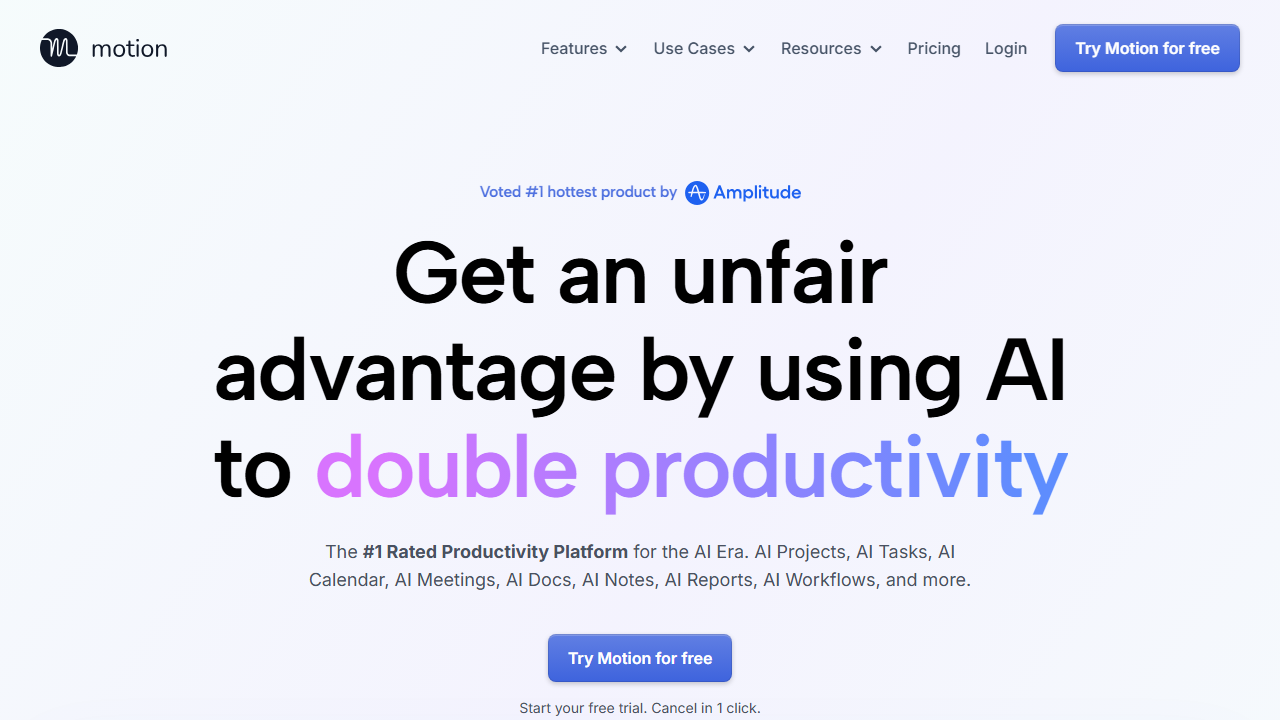
Motion is an AI-powered productivity platform built around the idea that your calendar and task list should talk to each other automatically. The company behind it has focused heavily on algorithmic time management since its early days. They believe that traditional to-do apps fail because they leave the hardest part, deciding when to actually do the work, entirely up to you.
For freelancers, this matters because we rarely have a boss telling us what to tackle next. One hour you might be writing copy, the next you are on a client call, and later you are invoicing. Motion attempts to understand your priorities, deadlines, and working habits. Then it builds a daily schedule that adapts as things change.
I found the concept immediately appealing because I was tired of staring at a long task list every morning. Deciding which item deserved my 9 AM energy versus my 3 PM slump was draining. Motion steps in as a digital planner that learns your patterns and protects focused work blocks.
How to Get Started with Motion
Getting Motion up and running takes a bit more effort than a typical app signup. The onboarding process is designed to capture how you work so the AI can make better decisions later. I recommend setting aside twenty to thirty minutes for the initial configuration rather than rushing through it.
Step 1: Sign Up
Head to usemotion.com and choose a plan that fits your needs. The Individual plan at $19 per month is the most common starting point for solo freelancers. You will need to enter payment details because Motion does not offer a permanent free tier, though they sometimes run trial promotions.
Step 2: Connect Your Calendar
Motion supports Google Calendar and Microsoft Outlook integrations. I connected my primary Google Calendar first and then added a secondary work calendar. The import process was smooth and all my existing events showed up within a minute or two.
Step 3: Set Your Working Hours
This step is critical for freelancers because your schedule might not follow a typical nine-to-five pattern. I set my core hours from 8 AM to 1 PM for deep work and left afternoons open for calls and admin. Motion uses these windows to know when it is allowed to place tasks.
Step 4: Add Your Tasks and Projects
You can add tasks manually, import them from other tools, or use Motion’s built-in project management features. I created project folders for each of my active clients and then added tasks with deadlines and estimated durations. The AI needs this data to build your schedule intelligently.
Step 5: Let the AI Schedule Your Day
Once your tasks are in the system, Motion begins placing them on your calendar automatically. I watched it block out two hours for a writing project and then slot a thirty-minute email batch right after lunch. You can drag items around if you disagree with the AI’s choices, and it learns from those adjustments.
Motion Key Features for Freelancers
Motion packs a surprising number of features into what looks like a simple calendar app. I found several tools that directly addressed pain points I had struggled with for years. Here is a detailed breakdown of what stood out during my testing period.
AI Auto-Scheduling
The flagship feature is Motion’s ability to take your task list and turn it into a concrete schedule. You enter what needs to get done, how long you think it will take, and when it is due. The algorithm then finds open slots in your calendar and books them as focused work sessions.
I tested this with a mix of urgent client deadlines and longer-term personal projects. Motion consistently prioritized the urgent work while still protecting time for important but non-urgent tasks. It felt like having a personal assistant who understood my workload.
The AI also reschedules automatically when things change. If a client meeting runs long and you miss a scheduled task block, Motion finds the next available slot and moves it for you. This dynamic adjustment saved me from manually rearranging my calendar dozens of times.
Task and Project Management
Beyond scheduling, Motion includes a full task manager with projects, labels, and priorities. I created separate projects for each client and tagged tasks by type such as writing, design, or admin. The system then uses these labels to group similar work together when possible.
You can set task dependencies so that certain items cannot be scheduled until others are complete. This was useful for multi-phase client work where research needed to happen before drafting. Motion respected these constraints and built the schedule accordingly.
The project view gives you a high-level look at everything on your plate. I liked being able to see which clients were demanding the most time in any given week. This helped me spot capacity issues before they became problems.
Calendar Integration
Motion integrates deeply with Google Calendar and Microsoft Outlook. Your scheduled tasks appear as actual calendar events, which means they block time just like a meeting would. I found this visibility helpful because it prevented me from overcommitting to calls during my deep work hours.
The integration is two-way, so events you add directly to your calendar show up in Motion. This prevents scheduling conflicts and keeps the AI informed about your real availability. I never had to worry about double-booking once the sync was active.
You can also create scheduling links that let clients book time with you. These links respect your working hours and existing commitments automatically. I replaced my separate scheduling tool with Motion’s built-in version and found it worked just as well.
Meeting Assistant
Motion includes a meeting scheduling feature that helps reduce back-and-forth emails. You generate a custom link for each meeting type and send it to your client. They pick a time that works within your constraints, and the event appears on both calendars.
I set up different links for discovery calls, project reviews, and casual check-ins. Each had its own duration and availability rules. Clients commented that booking with me felt effortless, which is a small but meaningful professional touch.
The meeting assistant also buffers time around calls automatically. I configured it to add fifteen minutes of recovery time after long meetings. Motion protected that buffer and refused to schedule tasks too close to the call’s end.
Focus Time Protection
One of Motion’s most underrated features is its aggressive protection of focus blocks. Once the AI schedules a two-hour writing session, it treats that block as sacred. New tasks or meeting requests will not invade that space unless you explicitly allow it.
I tested this by trying to add a last-minute call during a protected block. Motion warned me and suggested alternative slots. This friction was intentional and encouraged me to honor my own boundaries.
For freelancers who struggle with context switching, this feature alone can be worth the subscription price. I noticed my output increased on days when Motion successfully defended long uninterrupted stretches.
Mobile and Desktop Apps
Motion offers a web app, a desktop application for Mac and Windows, and mobile apps for iOS and Android. I used the Mac desktop app as my primary interface and checked the iPhone app when I was away from my desk.
The desktop app felt snappy and native, with keyboard shortcuts for quick task entry. The mobile app was more limited but sufficient for checking your schedule and adding quick notes. I wished the mobile experience was richer, but it handled the basics well.
Cross-device sync was reliable during my testing. A task I added on my phone appeared on my laptop within seconds. This consistency reduced the friction of capturing ideas no matter where I was.
Pricing: Is It Worth It?
Motion’s pricing is simple but not cheap for a solo freelancer. The company clearly targets professionals who value their time highly enough to pay for optimization. Here is exactly what you will pay in 2026.
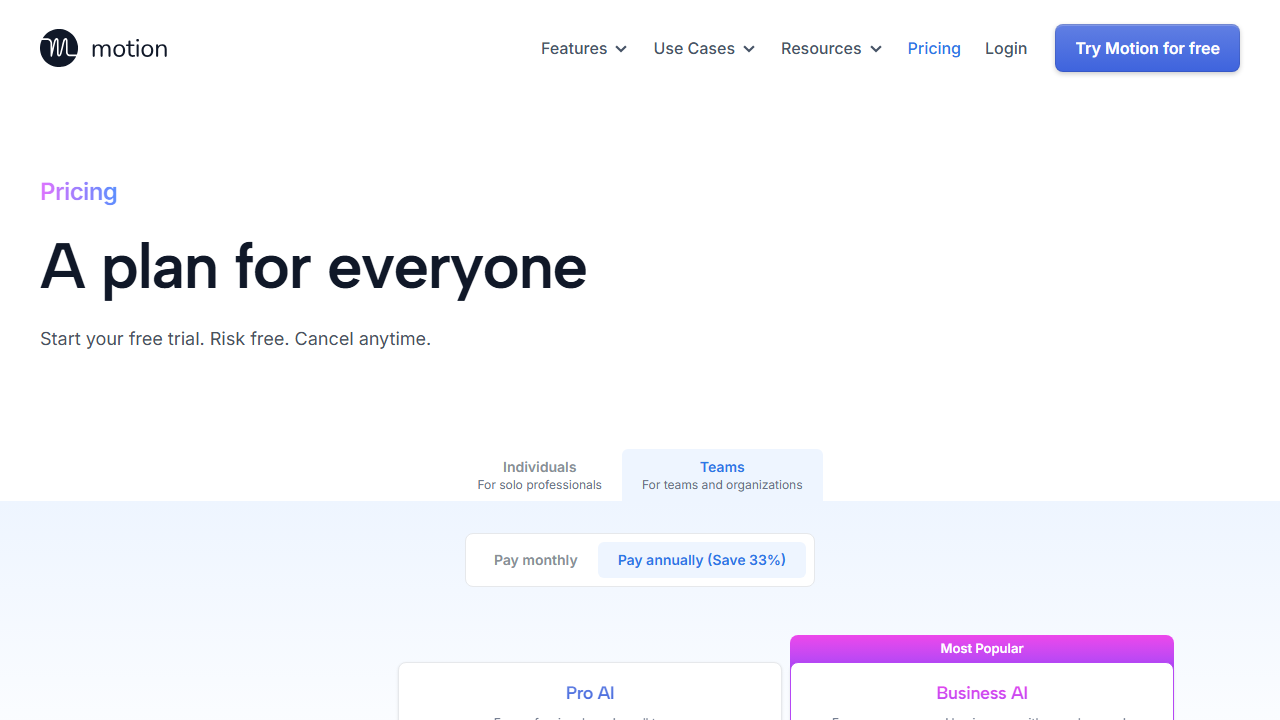
- Individual: $19 per month, or $12 per month if billed annually at $144 total. This plan includes AI scheduling, calendar integration, task management, meeting assistant, and desktop and mobile apps. It supports one calendar connection and is designed for solo users.
- Team: $12 per user per month when billed annually, or $19 per user per month on monthly billing. This adds collaborative project management, team scheduling, shared workspaces, and admin controls. It is overkill for most freelancers unless you regularly subcontract work to others.
I signed up for the Individual monthly plan to test without a long commitment. At $19 per month, the cost adds up to $228 per year if you stay monthly. The annual discount drops that to $144, which is a significant savings if you are confident you will use it.
The value proposition depends on how much time you currently waste scheduling yourself. I estimated that Motion saved me roughly two to three hours per week in planning and context-switching recovery. At my hourly rate, that paid for itself several times over.
There is no permanent free plan, which is a downside compared to some competitors. You will need to commit financially from day one. Motion does occasionally offer trial periods, so check their website for current promotions before signing up.
Pros and Cons
No tool is perfect, and Motion definitely has its strengths and weaknesses. I kept a running list of frustrations and delights during my testing period. Here is the honest breakdown.
Pros
- The AI scheduling genuinely reduces decision fatigue and protects focus time.
- Calendar integration is deep and reliable with both Google and Microsoft ecosystems.
- Meeting scheduling links replace separate tools like Calendly for many users.
- Project management features are robust enough to replace a separate task app.
- The desktop app is fast and offers helpful keyboard shortcuts.
- Automatic rescheduling when deadlines or meetings change saves manual work.
Cons
- No free tier means you must pay before you can fully evaluate the AI.
- The AI occasionally makes scheduling choices that ignore your energy patterns.
- Mobile apps are functional but lack the polish of the desktop experience.
- Onboarding takes longer than simpler apps and requires real data to work well.
- Team pricing is only cost-effective if you genuinely collaborate with others.
- Some users report occasional sync delays between Motion and external calendars.
Who Should Use Motion?
Motion is ideal for freelancers who manage many tasks across multiple clients and struggle with time blocking. If you find yourself rewriting your to-do list every morning or constantly shuffling calendar events, this tool will likely help. Writers, designers, developers, and consultants all fit the profile.
It is less suited for freelancers with highly unpredictable schedules who cannot commit to working hours. The AI needs some structure to do its job well. If your days are entirely reactive, you might fight the system more than it helps you.
People who already have a beloved task manager and calendar setup might find Motion redundant. It works best when it becomes your central hub rather than an add-on. I migrated everything into Motion and found the unified approach cleaner.
If you bill by the hour and every minute of planning time matters, Motion’s cost is easy to justify. The time you reclaim can go directly into billable work. I tracked my hours before and after adoption and saw a measurable improvement in productive output.
Teams of subcontractors might benefit from the Team plan, though most solo freelancers will not need it. The collaborative features are well built but only valuable if your workflow involves shared projects. I stuck with Individual and never felt limited.
Motion vs Competitors
I tested Motion alongside several alternatives including Reclaim.ai, Sunsama, and Akiflow. Motion stands out for its aggressive AI scheduling that actually moves tasks around without asking permission. Reclaim is more conservative and better for protecting habits, while Sunsama focuses on daily planning rituals.
Compared to traditional task managers like Todoist or Things 3, Motion adds the critical missing layer of automatic scheduling. Those apps excel at organizing but leave the timing entirely to you. Motion closes that gap, though it sacrifices some of the polish and speed that dedicated task apps offer.
If you want a tool that plans your day with minimal input, Motion is the strongest option I tested. If you prefer manual control with occasional AI suggestions, Reclaim or Sunsama might feel more comfortable. The right choice depends on how much decision-making you want to outsource.
Motion Review: Final Verdict
Motion earns its 4.2 out of 5 rating by delivering on a genuinely difficult promise: making AI scheduling feel useful rather than gimmicky. I finished my testing period with more organized days and less mental clutter around planning. The tool is not flawless, but the core experience is solid.
The $19 per month Individual plan is a reasonable investment for freelancers who value structured time. The annual discount makes it even more attractive if you are ready to commit. I recommend starting with a month-to-month subscription to confirm the AI works with your personal workflow.
This Motion review found that the platform shines brightest for knowledge workers with predictable core hours and varied task loads. If that describes you, give it serious consideration. You might find that outsourcing your schedule to an algorithm frees up more creativity than you expect.
If Motion does not feel like the right fit, you might also enjoy our Raycast review for Mac productivity or our Fathom review for meeting automation. Each tool solves a different freelancer pain point, and the best stack depends on your specific needs.
Frequently Asked Questions
Does Motion offer a free plan?
No, Motion does not offer a permanent free plan in 2026. You will need to subscribe to the Individual plan at $19 per month or $12 per month billed annually. Keep an eye on their website for occasional trial promotions that let you test the AI before committing financially.
Can I use Motion with multiple calendars?
Yes, Motion supports multiple calendar connections including Google Calendar and Microsoft Outlook accounts. During setup, you can connect personal and work calendars so the AI sees your full availability. This prevents double-booking and helps Motion find the best slots across all your commitments.
What happens if I miss a scheduled task block?
Motion detects when you miss a scheduled work session and automatically reschedules the task to the next available slot. You can also manually drag tasks to new times, and the AI learns from your preferences over time. This dynamic rescheduling is one of the features that sets Motion apart from static calendar apps.
Is Motion better than a traditional to-do app?
Motion is better for people who struggle with the scheduling part of productivity. Traditional to-do apps like Todoist or Things 3 excel at organizing tasks but leave the timing entirely up to you. Motion closes that gap by deciding when you should do each task based on your calendar and priorities.
Does Motion work for teams or just individuals?
Motion offers both Individual and Team plans. The Team plan at $12 per user per month annually adds collaborative project management and shared scheduling. Most freelancers will be fine with the Individual plan unless they regularly manage subcontractors or partners.
Can Motion replace my existing scheduling link tool?
For many users, yes. Motion includes a built-in meeting assistant that generates scheduling links, buffers time around meetings, and syncs directly with your calendar. I replaced Calendly with Motion and found the experience comparable for one-on-one bookings.
Is Motion worth $19 per month for freelancers?
If you bill at least one or two hours more per month because of better scheduling, Motion pays for itself. I found it saved me roughly two to three hours weekly in planning and recovery time. Your mileage will vary depending on how chaotic your current system is.