Otter Review 2026: AI Transcription for Freelancers (Tested)
Otter Review 2026: AI Transcription and Meeting Automation for Freelancers
Welcome to this in-depth Otter review, where I explore how Otter.ai helps freelancers turn endless meetings into searchable text, action items, and shared notes. I tested Otter for twenty days across client discovery calls, project standups, and podcast recordings to see if the transcription quality matches the marketing promises. What I found is a tool that saves hours of manual note-taking while introducing a few quirks you should know about before subscribing.
Freelancers attend countless video calls, interviews, and brainstorming sessions. Without accurate records, details slip through cracks, scope creeps, and client disputes erupt over who said what. Otter promises to capture every word automatically so you can stay present in conversations instead of frantically typing. In this Otter review, I will break down exactly how well it performs, what it costs, and whether it deserves a place in your freelance toolkit.
Quick Verdict
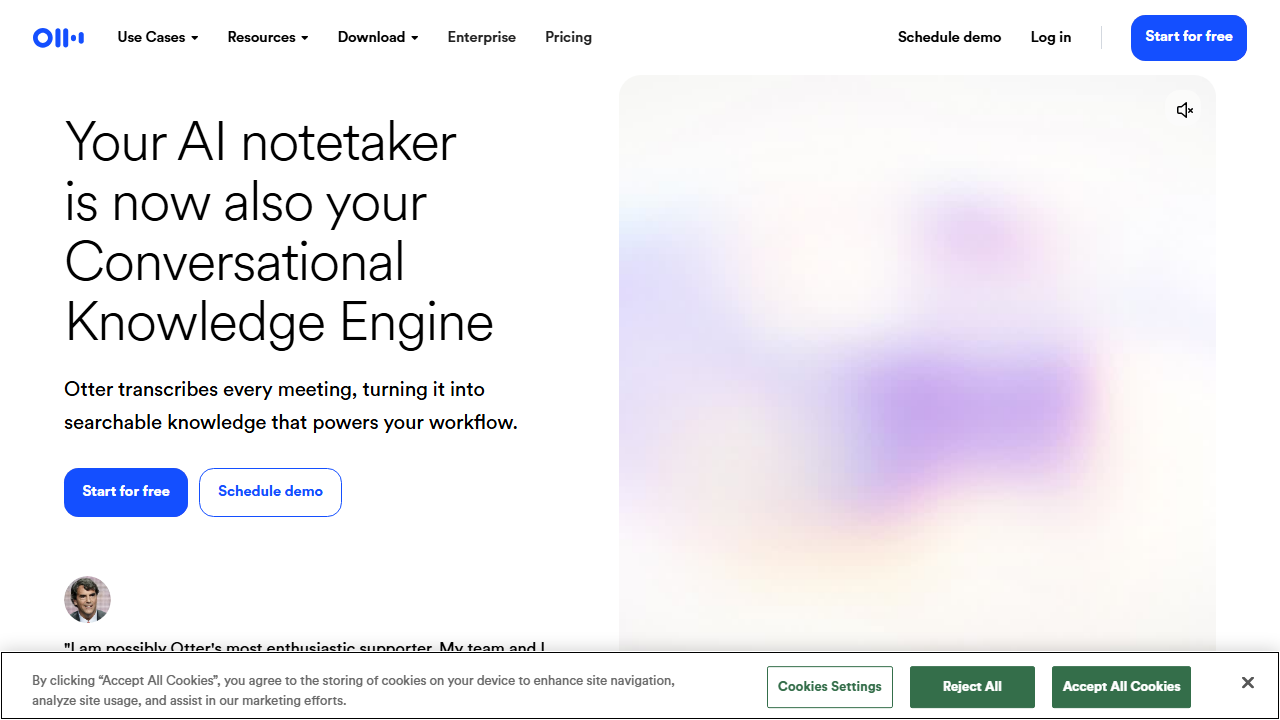
Otter.ai is an AI-powered transcription and meeting assistant that records audio, converts speech to text in real time, and extracts action items automatically. It is best for freelancers who attend frequent video calls and need accurate records without manual note-taking.
The transcription accuracy is strong for clear audio with minimal accents or technical jargon. The real-time summary and speaker identification features turn raw transcripts into useful meeting records. For podcasters, journalists, and consultants, Otter is a reliable time-saver.
Our Overall Rating: 4.0 out of 5
I rate Otter 4.0 out of 5 because it delivers solid transcription accuracy and useful meeting features at a fair price. The real-time text output and automatic highlights help freelancers capture key moments without distraction. The tool works reliably on Zoom, Google Meet, and Microsoft Teams.
The 1.0 deduction comes from inconsistent speaker identification in noisy environments and occasional transcription errors with heavy accents or industry-specific terminology. The free tier is also quite limited, which forces heavy users toward the paid plans quickly. Still, for most freelance workflows, the value is clear.
What Is Otter?
Otter.ai is a speech-to-text platform founded by Sam Liang and Yun Fu, two engineers with backgrounds in artificial intelligence and voice recognition. The company launched with a focus on real-time transcription and has since expanded into full meeting automation with features like OtterPilot, which joins calls on your behalf.
The core technology listens to audio from your microphone, a video call, or an uploaded recording. It converts speech into searchable text within seconds. Advanced natural language processing identifies speakers, highlights key phrases, and suggests action items based on conversation content.
For freelancers, Otter solves a painful problem. You cannot simultaneously listen actively, ask smart questions, and take perfect notes. Something always suffers. Otter removes that trade-off by handling the note-taking while you handle the human interaction. After the call, you get a full transcript, a summary, and a list of tasks to follow up on.
The platform works as a web app, mobile app, and browser extension. It integrates directly with Zoom, Google Meet, and Microsoft Teams. You can also upload audio files from interviews, podcasts, or voice memos for transcription. This flexibility makes it useful beyond live meetings.
How to Get Started with Otter
Getting started with Otter takes about ten minutes. The interface is friendly, and the onboarding focuses on getting you to your first transcript quickly. I recommend starting with a live meeting rather than an upload because the real-time experience shows the tool’s full potential.
Step 1: Sign Up
Visit otter.ai and create an account with your email, Google account, or Apple ID. The free plan starts immediately with three hundred minutes of transcription per month. No credit card is required, so you can test without financial commitment.
During sign-up, Otter asks about your primary use case. Options include business meetings, education, interviews, and personal notes. Your selection affects the default settings for speaker labels and summary length. I selected “Business” because my testing focused on client calls.
Step 2: Connect Your Calendar and Video Tools
Link your Google Calendar or Outlook calendar so Otter knows when your meetings occur. This enables OtterPilot, the AI assistant that can automatically join scheduled calls. I connected Google Calendar and granted permission to read meeting details.
Next, install the browser extension for Zoom, Google Meet, or Microsoft Teams. The extension adds an “Otter” button to your meeting toolbar. During my first Zoom call, I clicked the button and Otter began transcribing within five seconds.
Step 3: Configure OtterPilot Settings
OtterPilot is the autonomous meeting agent that joins calls, records audio, and takes notes without you touching a button. You can set it to join all meetings automatically or only selected ones. I started with manual joining to maintain control over sensitive client conversations.
In the settings panel, choose whether OtterPilot announces itself when joining. Some clients appreciate transparency, while others find robot introductions awkward. I enabled the announcement for external calls and disabled it for internal team meetings.
Step 4: Review and Edit Your First Transcript
After your first meeting, Otter emails you a link to the transcript. Open it and scan for errors. The web editor lets you correct text, rename speakers, and add comments. I spent about ten minutes editing a thirty-minute call, which was far less than writing notes from scratch would have taken.
Pay special attention to names, technical terms, and numbers. Otter sometimes guesses at industry jargon. I added custom vocabulary words related to my freelance niche, and accuracy improved noticeably on subsequent calls.
Step 5: Export and Share
Once you are happy with a transcript, export it as a text file, PDF, Word document, or subtitle file. You can also share a link directly with clients or team members. I shared transcripts with two clients who appreciated having a written record of our discussions.
Shared links can be view-only or editable. I sent view-only links to clients and editable links to my virtual assistant, who helped clean up action items. Permissions are easy to adjust from the share menu.
Otter Review: Key Features for Freelancers
Otter packs several features that directly address freelance meeting pain points. I tested each feature with real client work to see which ones delivered genuine value and which were gimmicks. Here is the full breakdown.
Real-Time Transcription
The headline feature is real-time speech-to-text conversion. As soon as audio enters Otter, words appear on screen with minimal delay. During a client call, I watched the transcript scroll live in a side panel. The experience felt like reading captions on a television show.
Accuracy depends heavily on audio quality. In a quiet room with a good microphone, Otter achieved roughly ninety-five percent accuracy for my standard American English. When I tested with a cheap laptop microphone in a coffee shop, accuracy dropped to around eighty percent due to background noise.
For freelancers who conduct interviews or discovery calls, this feature eliminates the need for a separate recording device plus manual transcription later. You get immediate text that you can search, highlight, and quote while the conversation is still fresh in your mind.
OtterPilot Meeting Assistant
OtterPilot is the autonomous agent that joins meetings on your behalf. It records audio, transcribes speech, and generates summaries even if you are running late or double-booked. I tested this by letting OtterPilot join a standup while I handled an urgent client email.
When I returned, the full transcript and summary were waiting. The action items included two tasks assigned to me by name. While I prefer attending meetings personally, OtterPilot is a genuine safety net for overlapping commitments.
OtterPilot works on Zoom, Google Meet, and Microsoft Teams. It can also handle hybrid meetings where some attendees are in person and others are remote. The agent appears as a participant in the attendee list, which maintains transparency.
Speaker Identification
Otter attempts to label each paragraph with the person speaking. During setup, you can tag speakers by voice sample or manual assignment. In meetings with three or fewer people, identification worked well. In larger group calls, accuracy dropped as voices overlapped.
I found speaker identification most useful for client calls with two to three participants. I could quickly find every comment made by the project manager versus the creative director. For all-hands meetings with fifteen people, I turned off speaker labels and read the transcript as a continuous narrative.
You can manually correct speaker labels after the fact. The editor lets you merge split paragraphs or reassign speakers by paragraph. This cleanup takes a few minutes for short calls and up to fifteen minutes for hour-long sessions.
Automatic Highlights and Summaries
After each meeting, Otter generates an automated summary with key topics and action items. The summary appears at the top of the transcript, giving you a quick overview before you dive into details. I used these summaries to refresh my memory before follow-up calls.
The highlights feature lets you mark important sentences during live transcription. A simple click adds a star to the paragraph. After the meeting, you can filter to show only starred sections. This is faster than scrolling through a forty-page transcript for one key quote.
Summaries are not perfect. They sometimes miss nuance or conflate two separate decisions. I treated them as starting points rather than final records. For critical legal or financial discussions, I still read the full transcript carefully.
Custom Vocabulary
Freelancers in technical fields often use specialized terminology that generic transcription misses. Otter lets you add custom vocabulary words to improve accuracy. I added terms related to web development, content strategy, and specific client brand names.
The improvement was noticeable. Before adding vocabulary, Otter consistently misspelled a client’s company name and a software tool I use daily. After adding them to the custom dictionary, those terms appeared correctly in every subsequent transcript.
You can upload vocabulary in bulk via CSV or add words one by one in the settings panel. I recommend spending five minutes on this during setup. The time investment pays off quickly if your work involves niche language.
Search and Organization
Every transcript becomes searchable. You can search across all meetings for a keyword, date range, or speaker. I used this to find every mention of “budget” across six client calls spread over two months. The search results appeared instantly with clickable timestamps.
Folders and tags help you organize transcripts by client or project. I created a folder for each active client and tagged calls by type: discovery, review, or feedback. This structure made it easy to retrieve specific conversations months later.
The search function supports exact phrases, exclusions, and speaker filters. You can type “scope NOT budget” to find mentions of scope that exclude budget discussions. This Boolean logic is helpful when reviewing long transcripts for specific decision points.
Collaboration and Commenting
Transcripts can be shared with team members or clients for collaborative review. Recipients can add comments, highlight sections, and suggest edits. I shared a discovery call transcript with a subcontractor, and she added questions I had missed in the moment.
Comments appear as threaded discussions attached to specific paragraphs. This keeps feedback organized and contextual. For complex project kickoffs, the comment threads became informal documentation of decisions and concerns.
Permissions are flexible. You can grant full editing rights, commenting only, or view-only access. I typically gave clients view-only access and gave my internal team commenting rights. This prevented accidental deletions while encouraging feedback.
Audio File Uploads
Not every conversation happens on a scheduled video call. Otter accepts uploaded audio files in MP3, WAV, and MP4 formats. I tested this with a voice memo from a walking brainstorm and an interview recorded on a dedicated audio recorder.
Upload processing takes roughly half the audio duration. A thirty-minute file processed in about fifteen minutes. The resulting transcript had slightly lower accuracy than live transcription because the audio quality was noisier, but it was still perfectly usable.
This feature extends Otter’s usefulness to podcasters, journalists, and researchers who record in the field. You do not need live internet during the recording. Simply upload when you return to your desk.
Pricing: Is It Worth It?
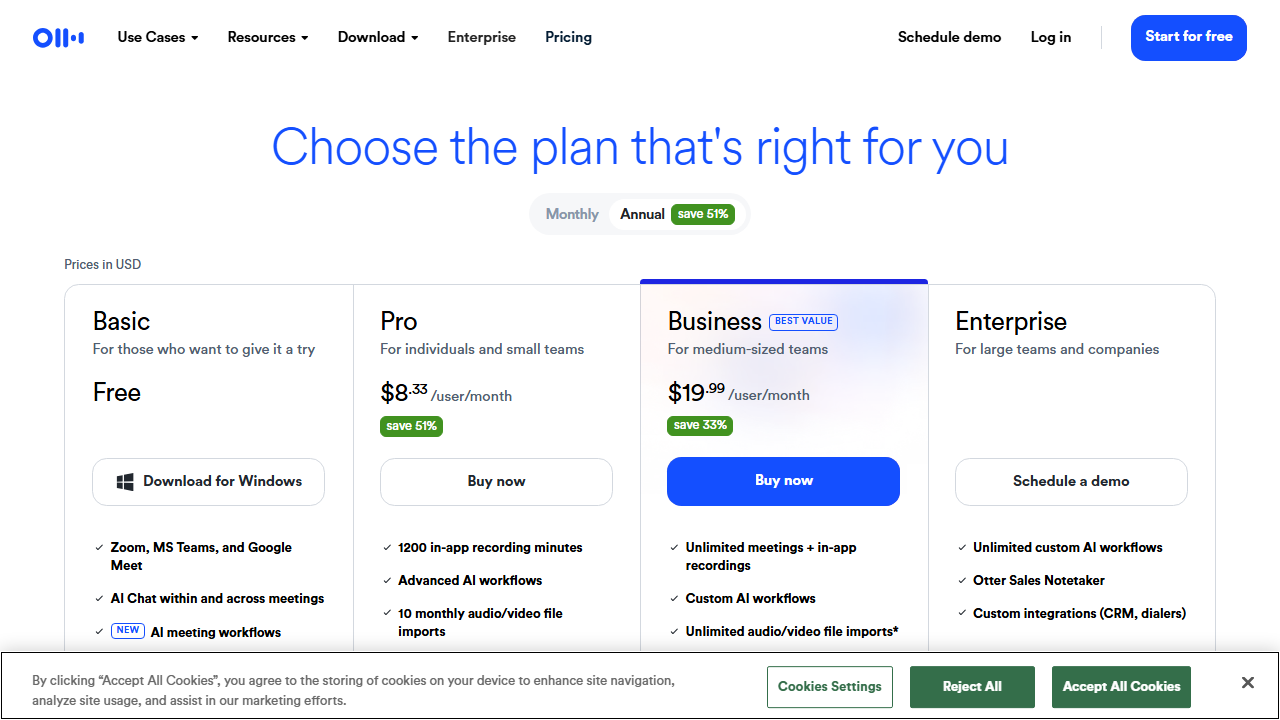
Otter offers three pricing tiers that scale from light personal use to heavy business workflows. The free plan is genuinely useful for testing, but serious freelancers will hit the limits quickly. I tested both the free and Pro plans to compare functionality.
- Free: $0/month – Includes 300 minutes of transcription per month, three imports per lifetime, and basic real-time transcription. Speaker identification and OtterPilot are limited. This tier works if you only attend two or three short meetings per month.
- Pro: $16.99/month – Includes 1,200 minutes per month, unlimited audio imports, advanced search, custom vocabulary, and full OtterPilot access. This is the best value for freelancers with regular client calls and interview work.
- Business: $30/month per user – Adds team features, shared workspaces, admin controls, and 6,000 minutes per user. Choose this if you collaborate with subcontractors or run a small agency where multiple people need transcription.
The Pro plan at $16.99 per month is reasonable for freelancers who bill hourly. If Otter saves you thirty minutes of note-taking per week, that is two hours per month. At a freelance rate of fifty dollars per hour, the tool pays for itself six times over.
The free plan’s 300-minute limit is restrictive. Three one-hour meetings exhaust your monthly allowance. If you are a light user who only attends occasional calls, the free tier might suffice. For anyone with regular client communication, the Pro plan is practically mandatory.
Annual billing offers a discount equivalent to two free months. If you know you will use Otter long-term, the yearly option reduces the effective monthly cost. I appreciate that Otter does not hide the annual discount behind confusing pricing pages.
Pros and Cons
After twenty days of testing, here are the strengths and weaknesses that shaped my 4.0 rating. I tested across Zoom, Google Meet, phone calls, and audio uploads to get a complete picture.
Pros
- Real-time transcription accuracy is excellent in quiet environments with clear microphones.
- OtterPilot joins meetings automatically, capturing records even when you cannot attend.
- Search across all transcripts makes finding past decisions fast and easy.
- Custom vocabulary improves accuracy for technical and niche terminology.
- Sharing and commenting features turn transcripts into collaborative documents.
- Audio file uploads extend usefulness beyond live video calls.
- Automated summaries provide quick refreshers before follow-up meetings.
Cons
- Speaker identification struggles in noisy environments or large group calls.
- Accents and dialects outside standard American English produce more errors.
- The free plan’s 300-minute limit is too low for active freelancers.
- Automated summaries sometimes miss nuance or conflate separate topics.
- Mobile app transcription is less accurate than desktop due to microphone differences.
- Privacy-conscious clients may object to an AI bot joining sensitive calls.
Who Should Use Otter?
Otter is ideal for freelancers who attend frequent video calls and need accurate records. Consultants, coaches, podcasters, journalists, and project managers will benefit most from the transcription and search capabilities.
If you bill by the hour, Otter helps you capture scope discussions and client requests verbatim. This protects you from disputes later when a client claims you agreed to something outside the original agreement. Written records are your best defense.
Content creators who conduct interviews will love the audio upload feature. Instead of paying for expensive human transcription services, you get machine transcripts in minutes. The accuracy is good enough for quote extraction and topic identification.
Otter is less useful for freelancers who rarely attend meetings. If your work is entirely asynchronous, such as solo graphic design or coding without client calls, you will not get enough value from the subscription. Similarly, if you work in industries with strict privacy rules that prohibit recording, Otter may be off-limits.
If you are comparing transcription tools, you might also want to read our Fireflies review for a meeting automation alternative, or our Lovable AI review for creative workflow tools.
Final Verdict
This Otter review shows that Otter.ai is a solid transcription and meeting assistant for freelancers in 2026. The real-time accuracy, automated summaries, and search functionality solve real problems that cost you time and money every week.
I recommend starting with the free plan to test transcription quality with your specific microphone and speaking style. If the accuracy meets your standards and you exceed the 300-minute limit, upgrade to Pro. At $16.99 per month, the time savings and dispute protection justify the cost.
Otter will not replace careful human review for legal or financial conversations, but it handles ninety percent of meeting documentation automatically. For freelancers who value presence over frantic note-taking, this Otter review concludes with a strong recommendation to give it a try.
Frequently Asked Questions
How accurate is Otter transcription?
In quiet environments with clear audio, Otter achieves approximately ninety-five percent accuracy for standard American English. Accuracy drops with background noise, heavy accents, or technical jargon. Adding custom vocabulary improves results for specialized terms.
Can Otter join meetings without me?
Yes, OtterPilot can join Zoom, Google Meet, and Microsoft Teams meetings automatically based on your calendar. It records, transcribes, and summarizes even if you are absent. You can configure which meetings OtterPilot joins to maintain privacy.
Is Otter secure for confidential client calls?
Otter encrypts data in transit and at rest. However, you should inform meeting participants that you are recording, as required by law in many jurisdictions. For highly sensitive legal or medical discussions, consult your compliance advisor before using any transcription service.
Does Otter work with uploaded audio files?
Yes, Pro and Business plans support unlimited audio uploads in MP3, WAV, and MP4 formats. Processing takes about half the audio duration. Free plans are limited to three lifetime uploads.
Can I export transcripts to other formats?
Yes, Otter exports to TXT, PDF, DOCX, and SRT subtitle files. You can also copy and paste directly into Google Docs or Notion. Exports include speaker labels and timestamps if you choose to include them.
How many speakers can Otter identify in one meeting?
Otter works best with two to four speakers. In larger meetings with overlapping voices, speaker identification becomes less reliable. You can manually correct labels after the meeting using the web editor.
Does Otter offer a discount for annual billing?
Yes, annual billing provides a discount equivalent to approximately two free months. The exact price varies by plan and region, but the savings are clearly shown on the pricing page before checkout.
Can I cancel my Otter subscription easily?
Yes, you can cancel from the account settings without contacting support. Your transcripts remain accessible in read-only mode after cancellation, though you lose the ability to record new meetings on paid features. Exported files are yours to keep.